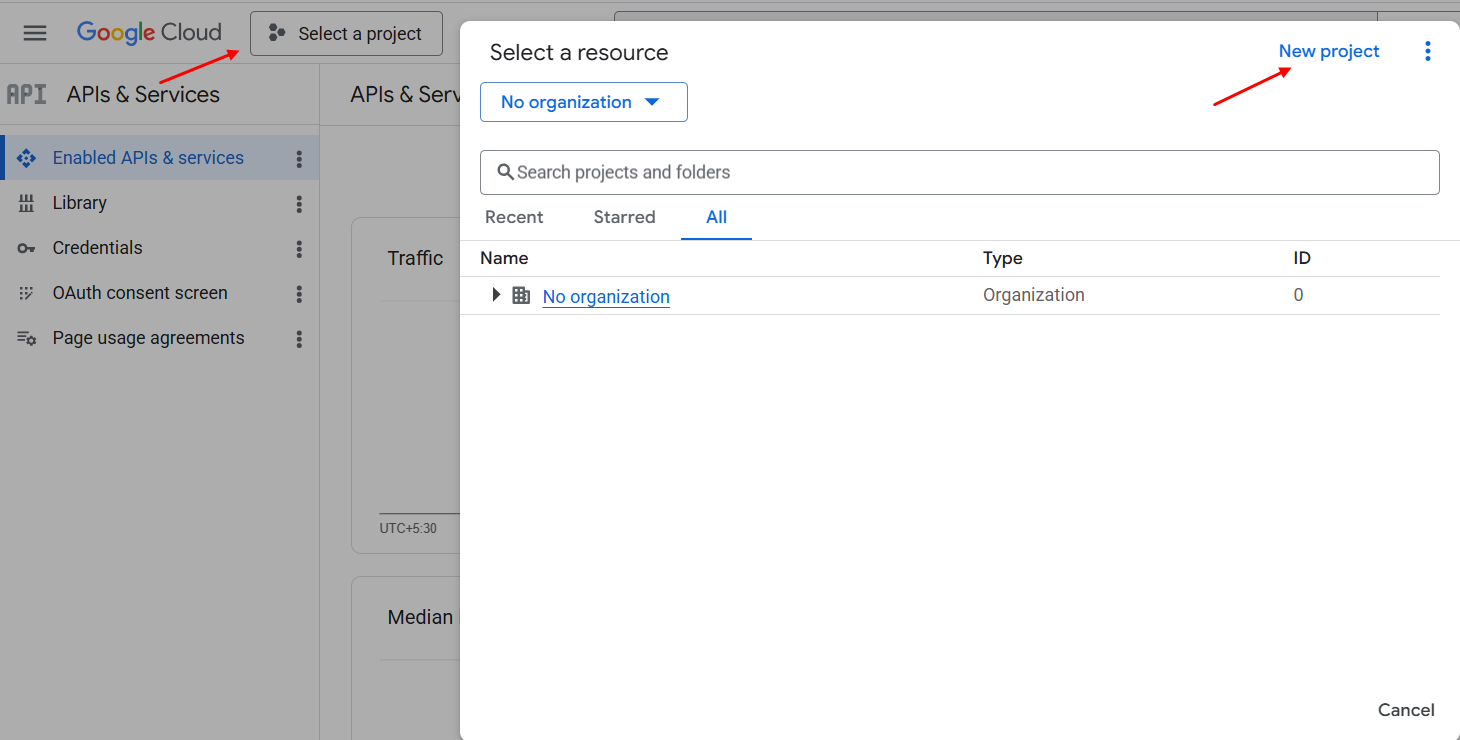
In the top menu, click the Select a Project dropdown. Here, a pop-up appears; click New Project.
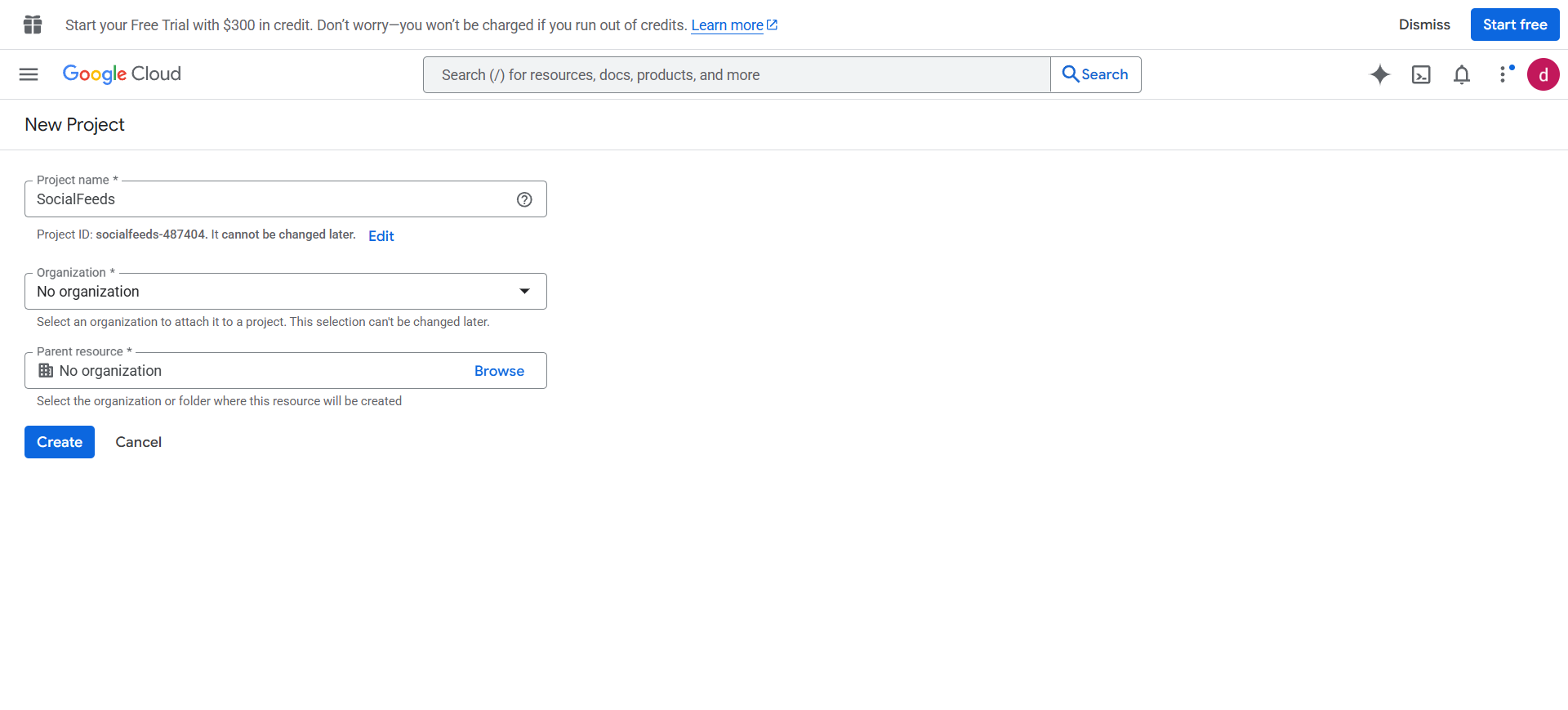
Enter a name for this project and click “Create“
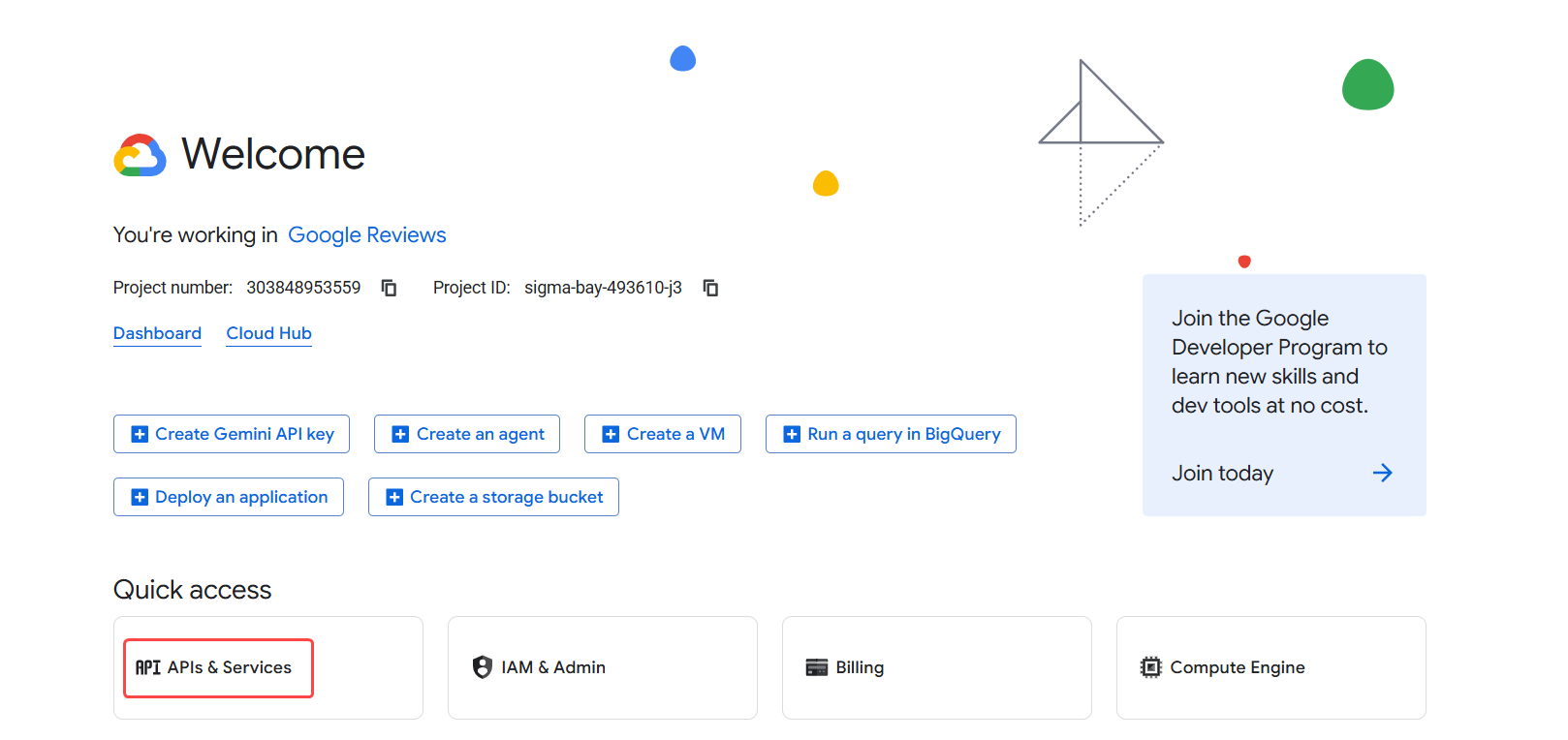
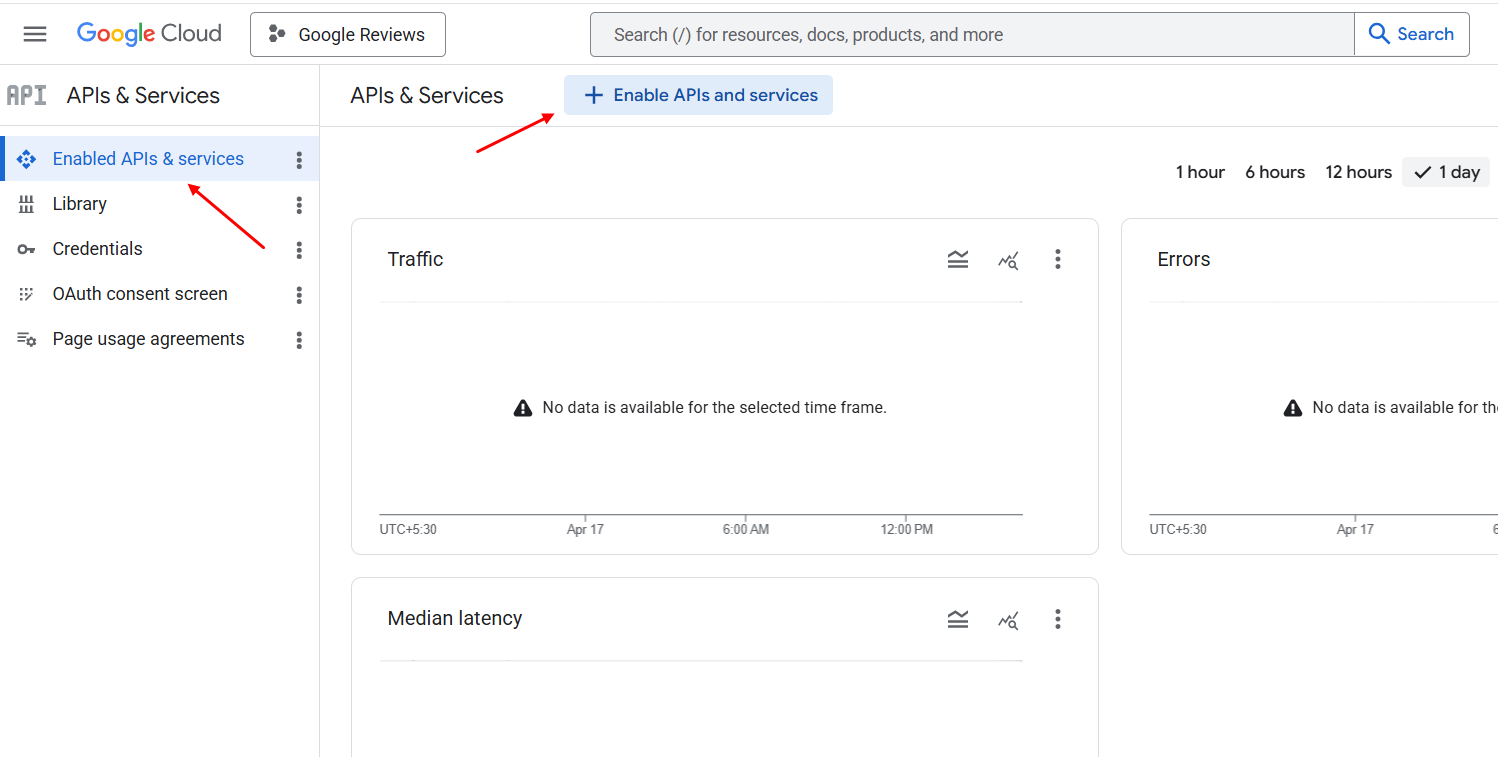
Ensure the correct project is selected from the top drop-down menu, then go to APIs & Services.
From the left-hand menu, select “Enabled APIs & Services.” click the “Enable APIs and Services” button to open the API Library.
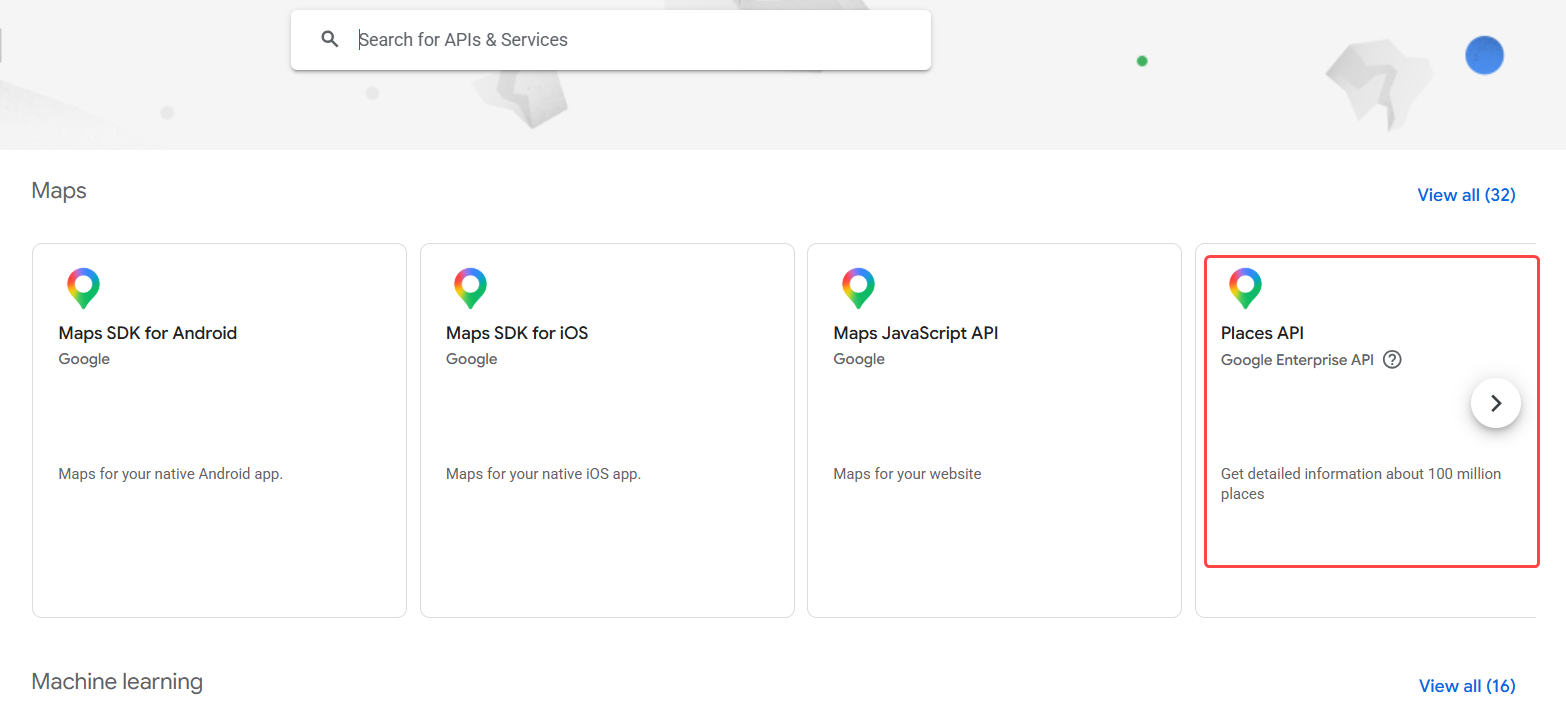
Click Places API from the list of available APIs in the API Library.
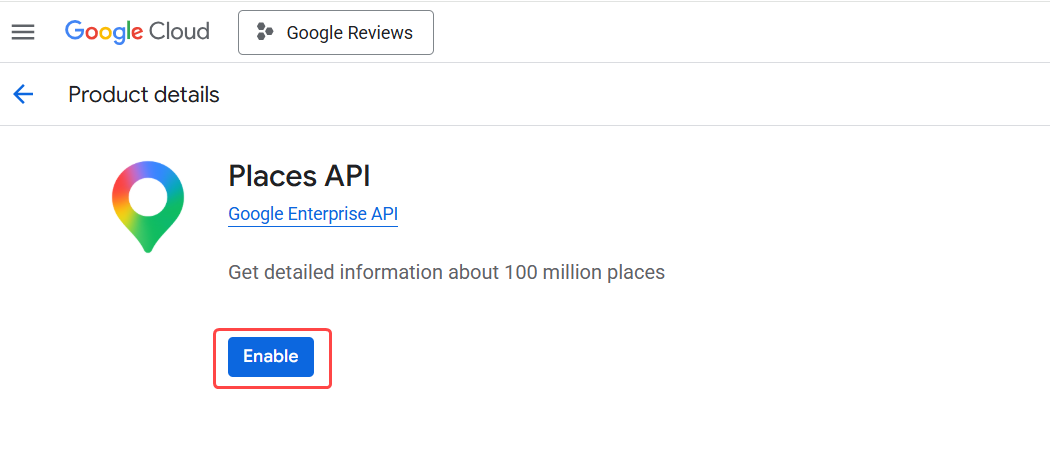
Click Enable to turn on this service for your selected project.
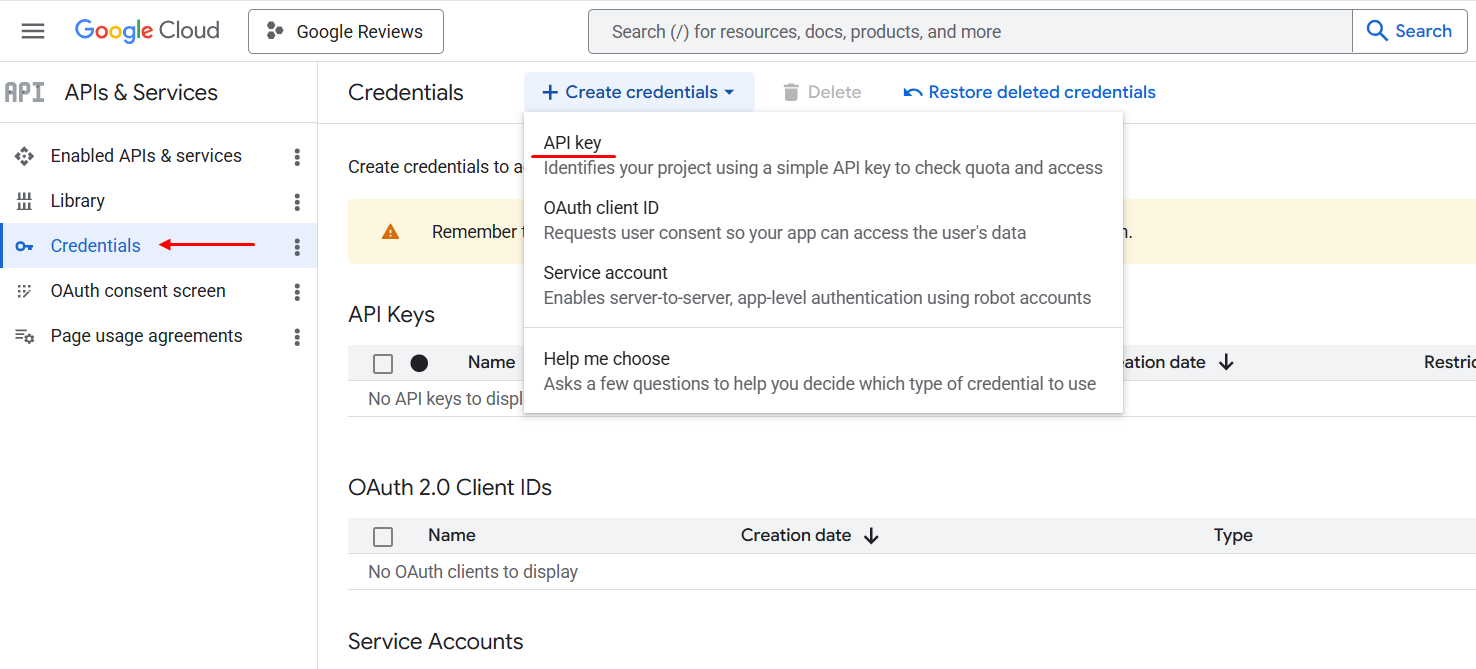
Click the Create Credentials button at the top of the page, then select the API key option from the dropdown menu.
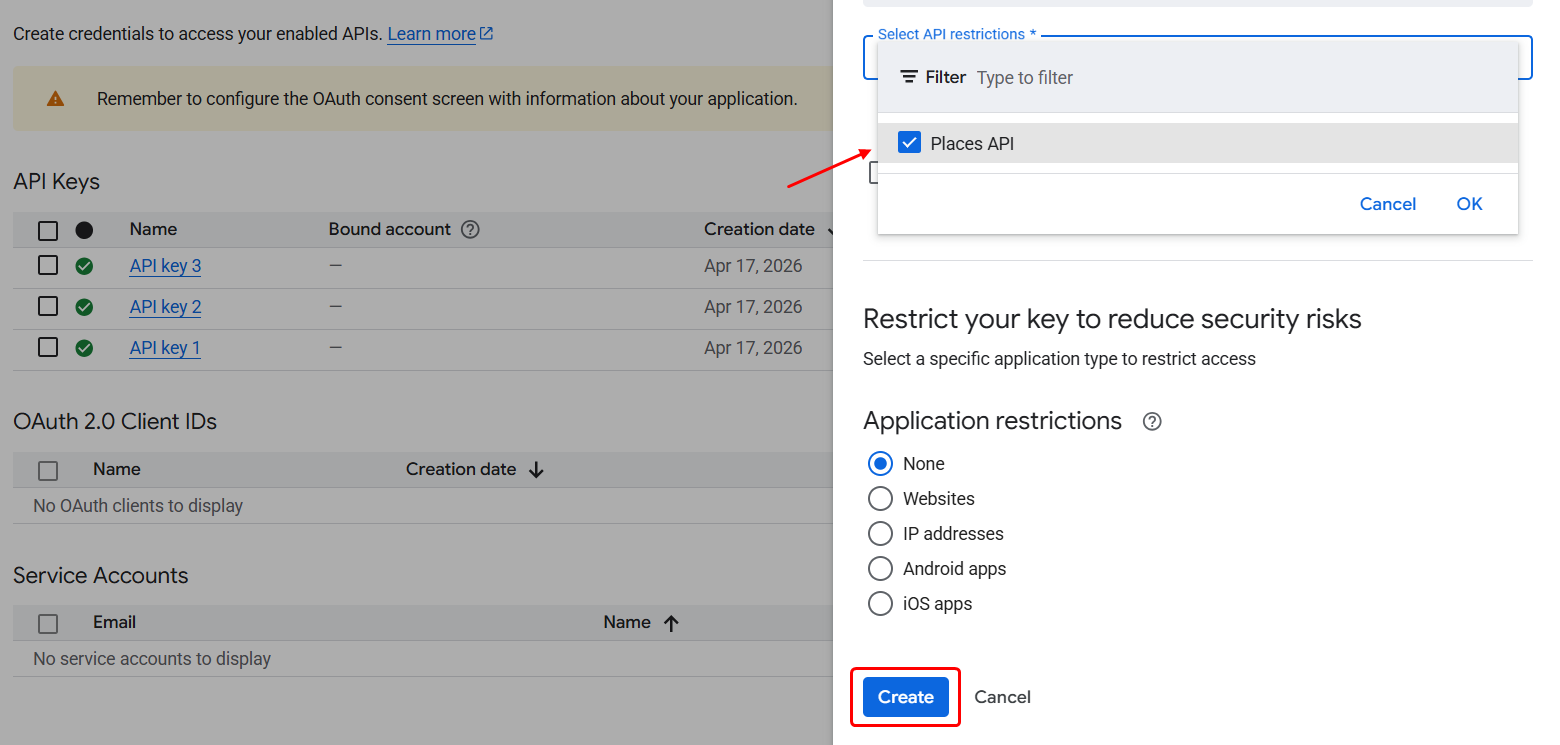
A pop-up window will appear on the right side. Make sure the Places API option is selected and enabled; otherwise, the Places API will not work to fetch place information. Then click Create.
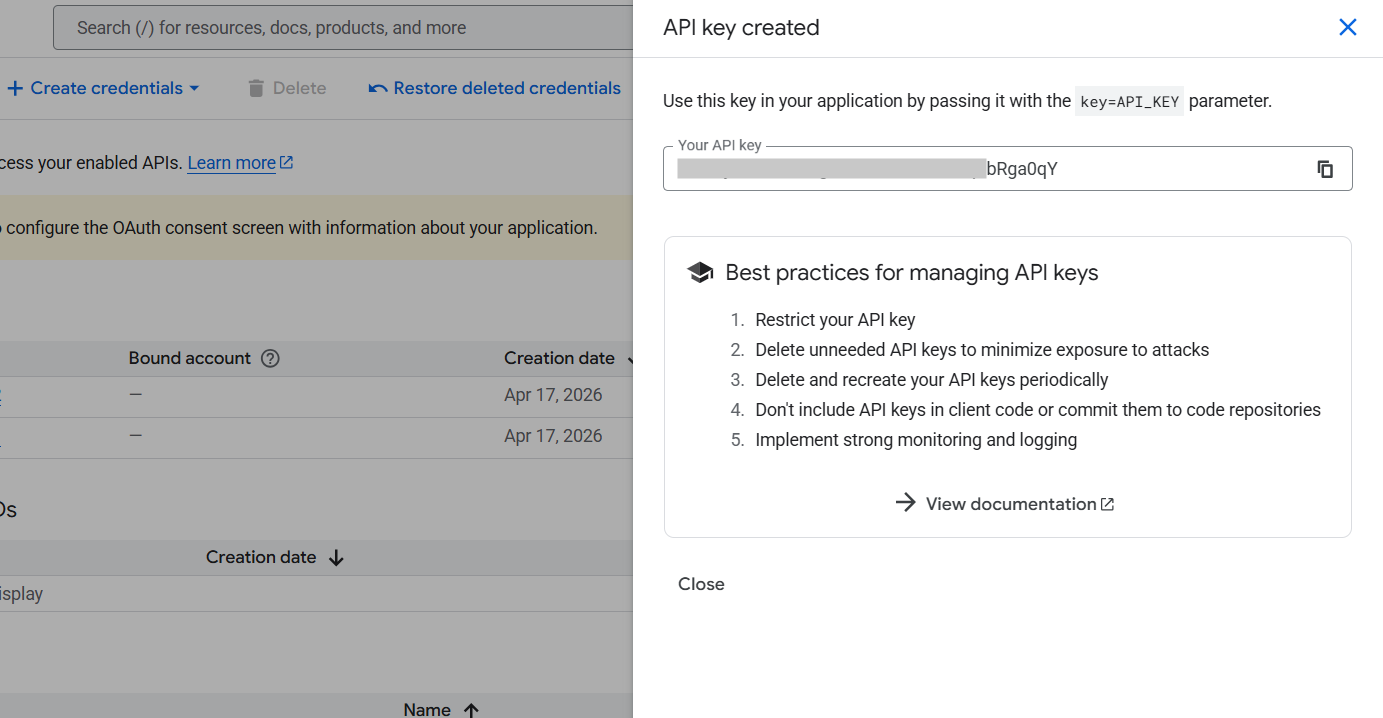
Then the API key will be generated automatically.
Return to your WordPress dashboard and open the GoogleReview configuration pop-up. Select the API Key option, paste your key into the GoogleReviews API Key field, and click Save API Key. Your GoogleReview account is now successfully activated.
If you face any issue do let us know and we will help you out, you can contact out support team at [email protected]