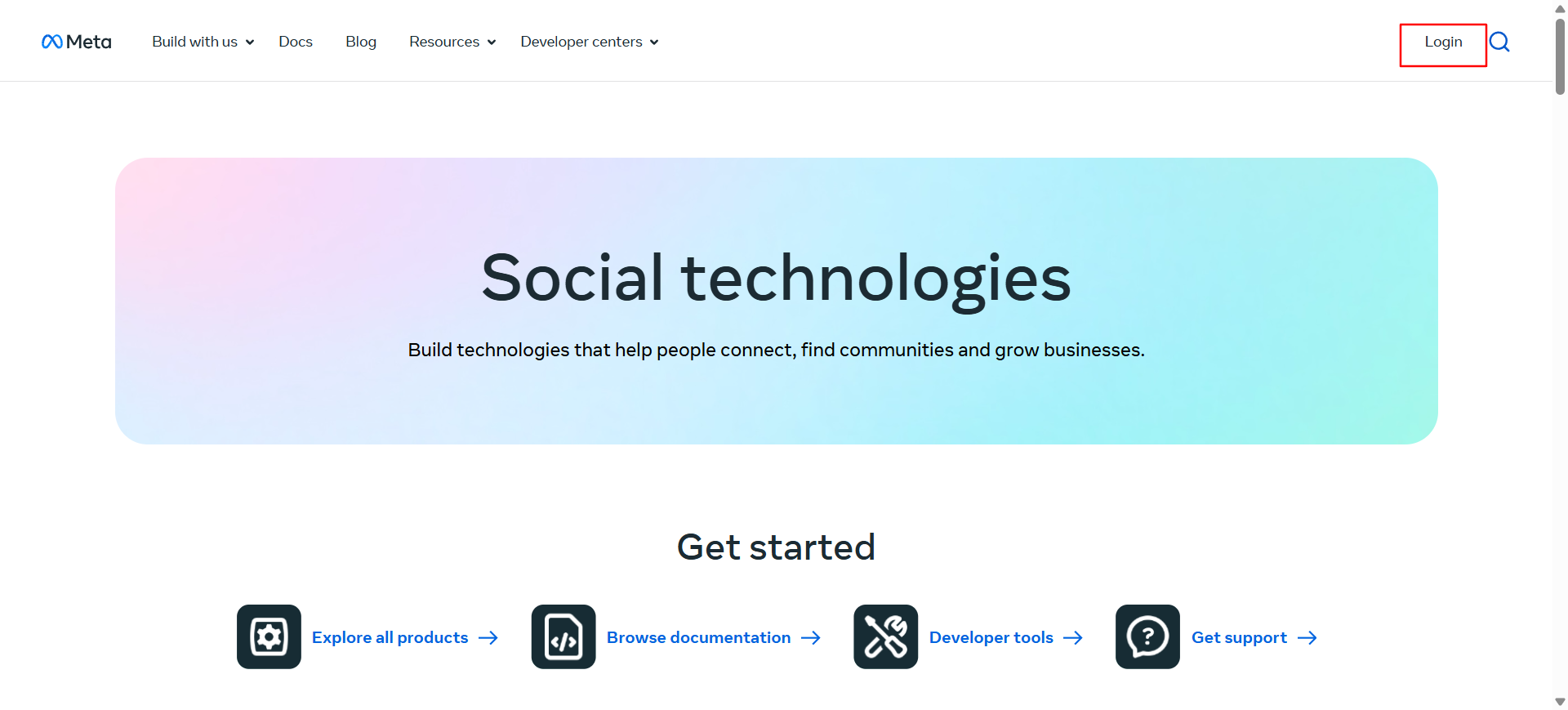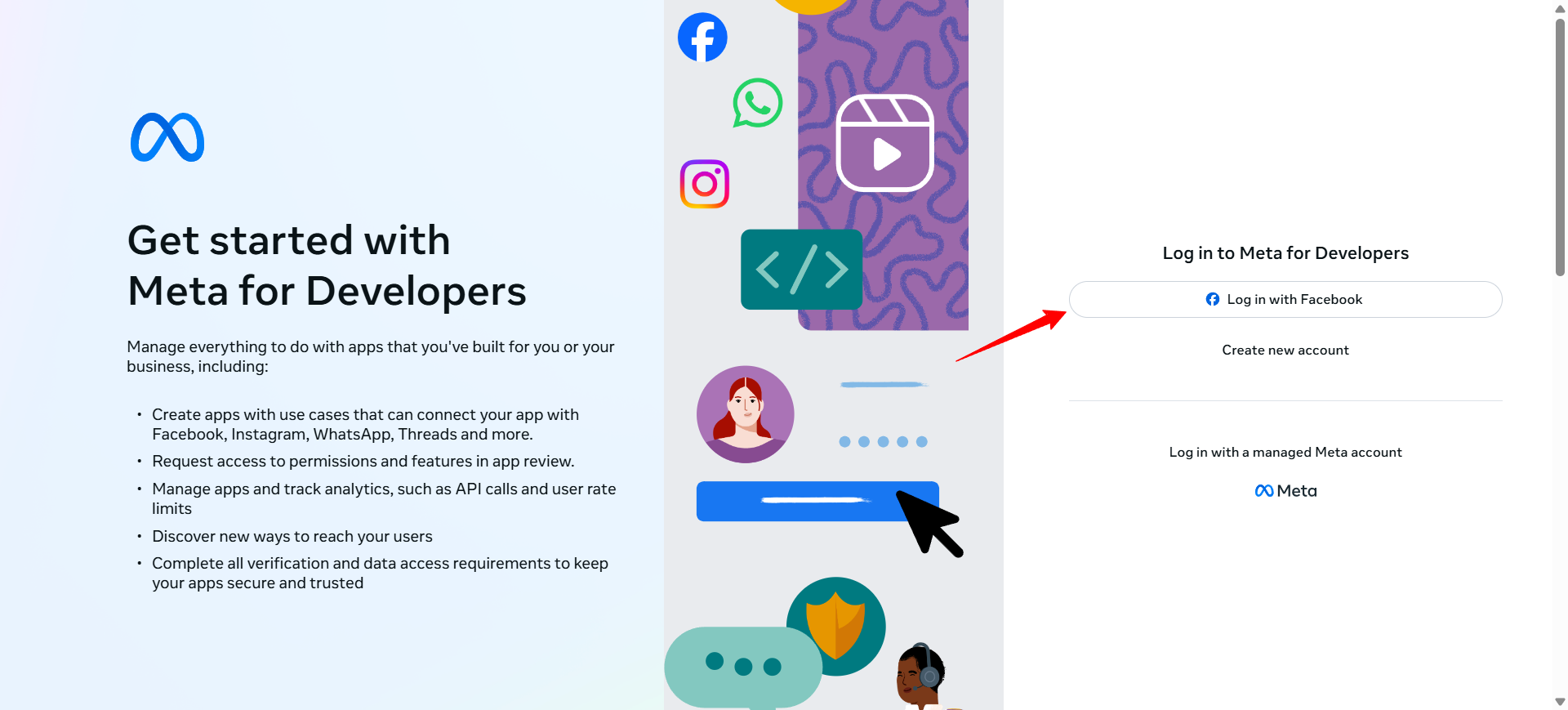
Create a Facebook for Developers account by entering your name, email, and password, or log in with an existing account.
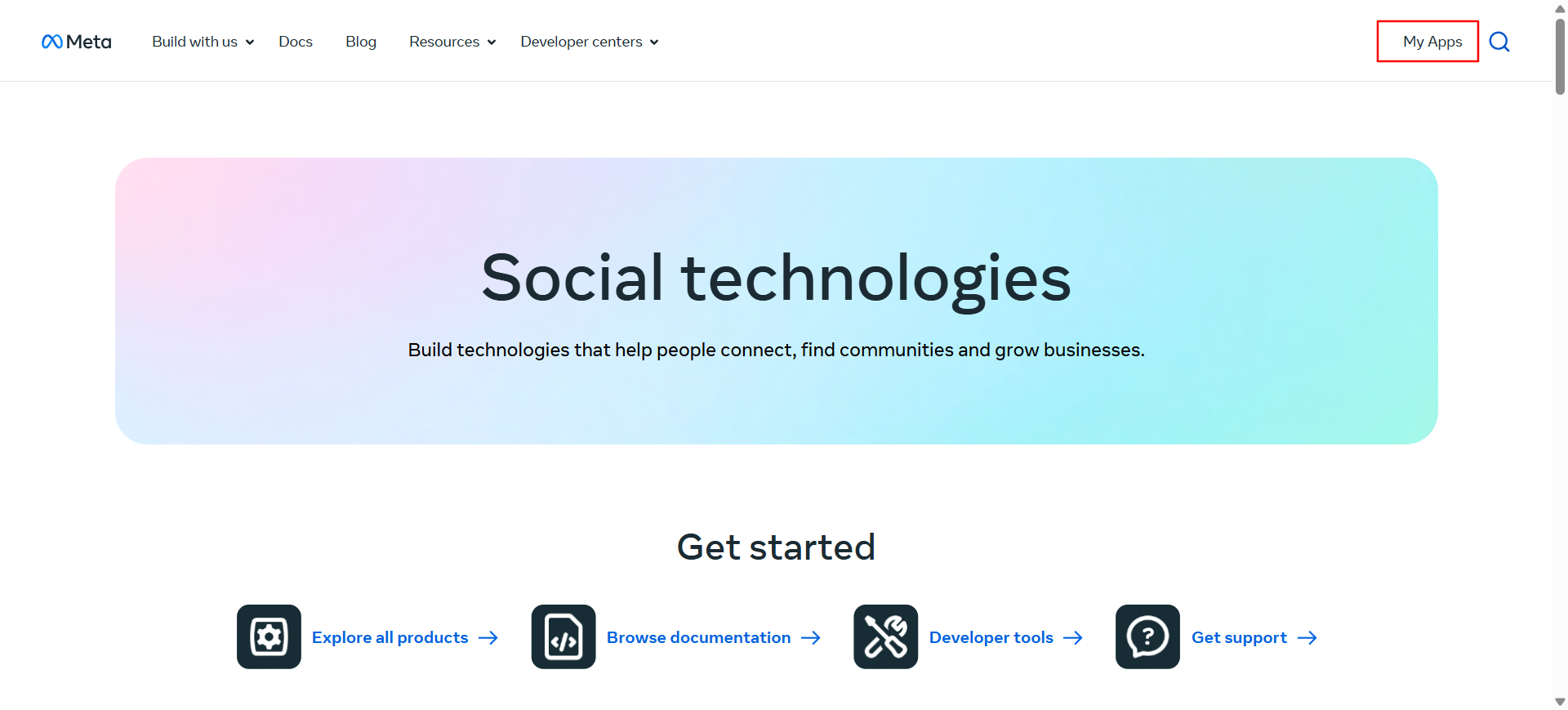
From the dashboard, click My Apps.
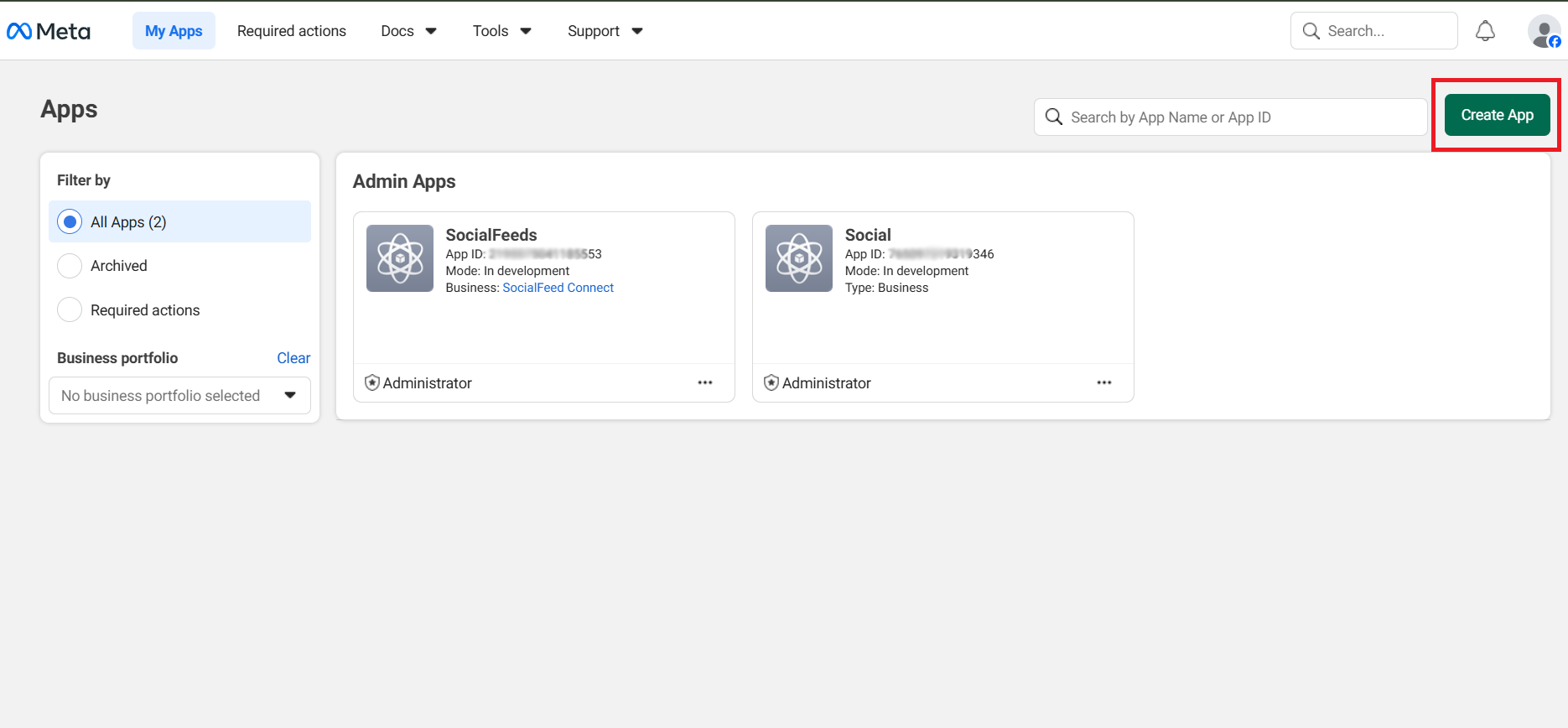
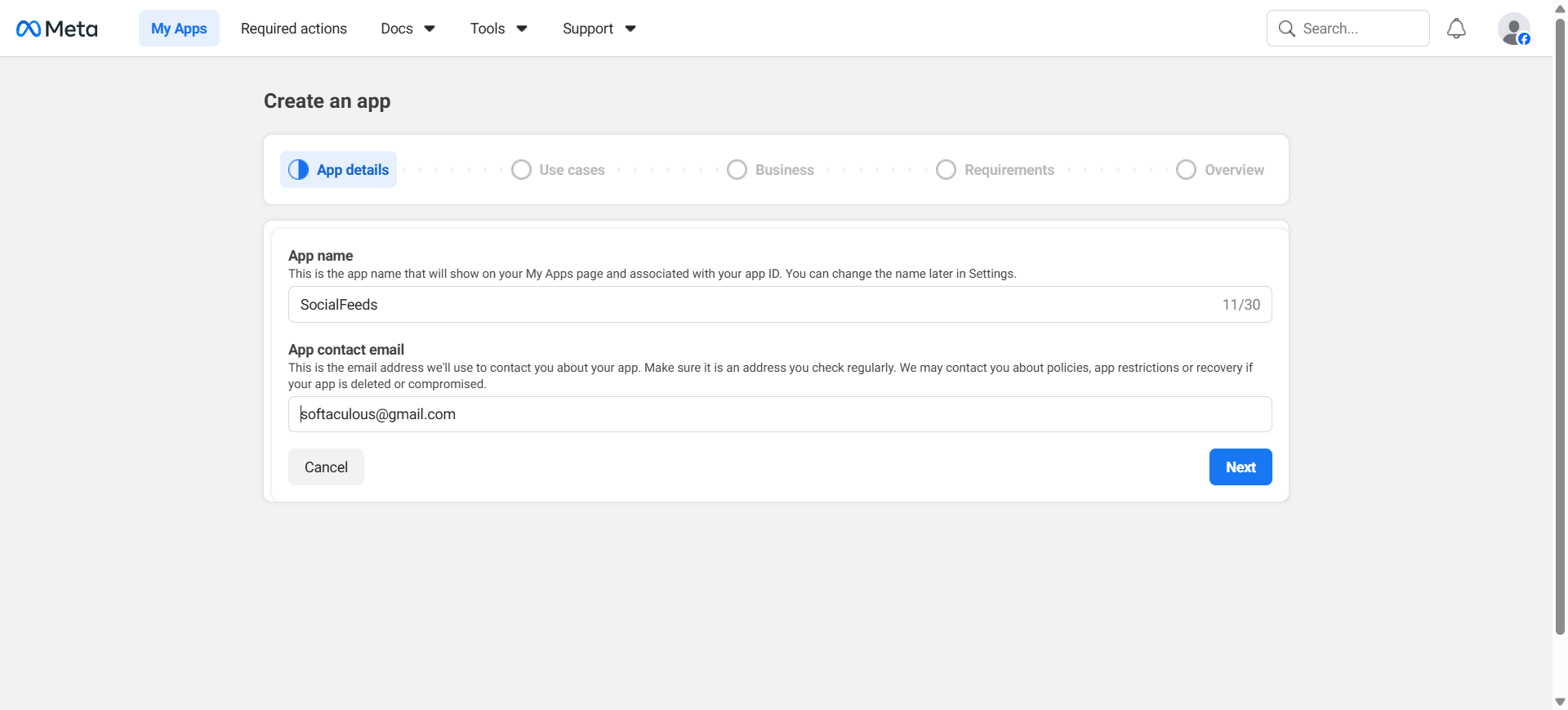
Click the Create App button.
Then, fill in the details: App Name: Enter any name (e.g., "SocialFeeds") App Contact Email: Enter your email address
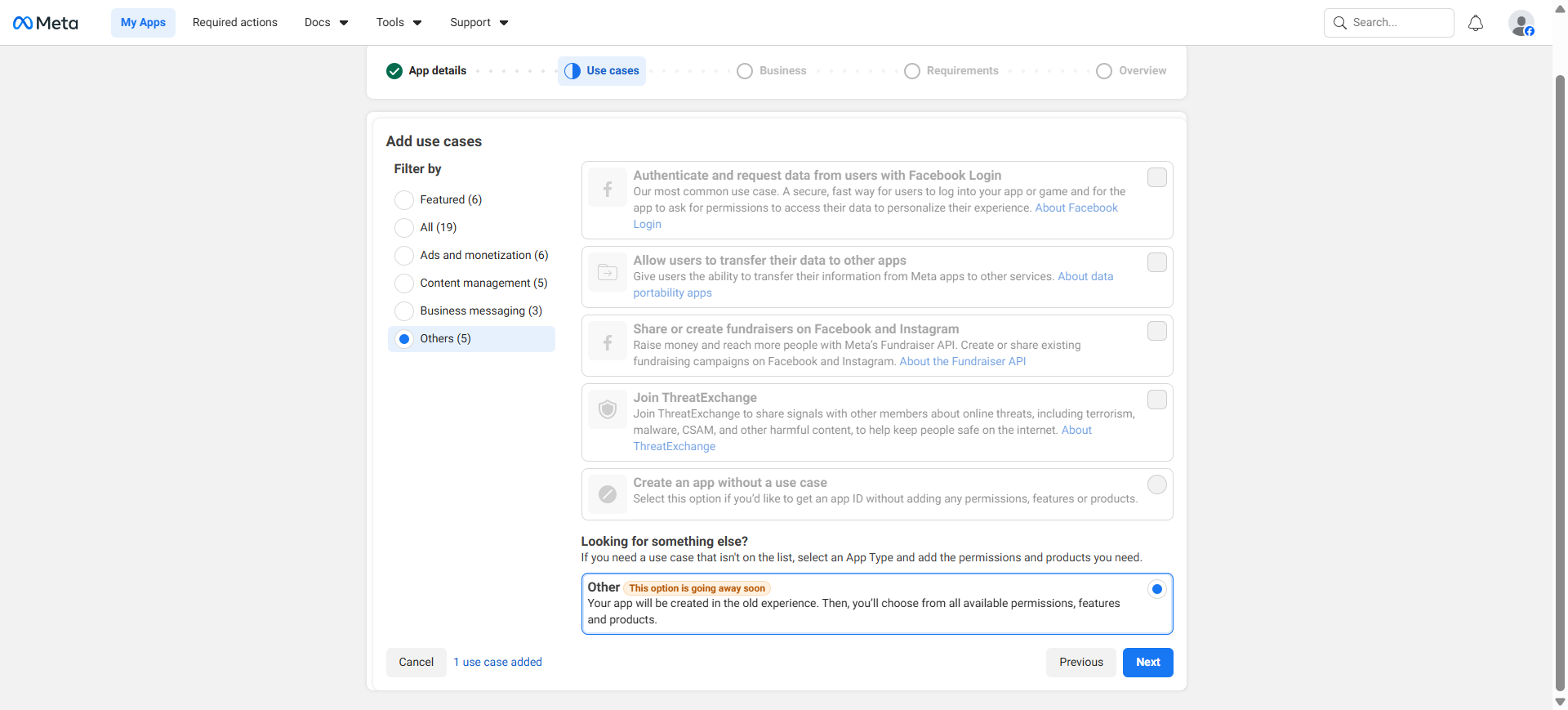
Click Other, enable the required permissions, then click Next.
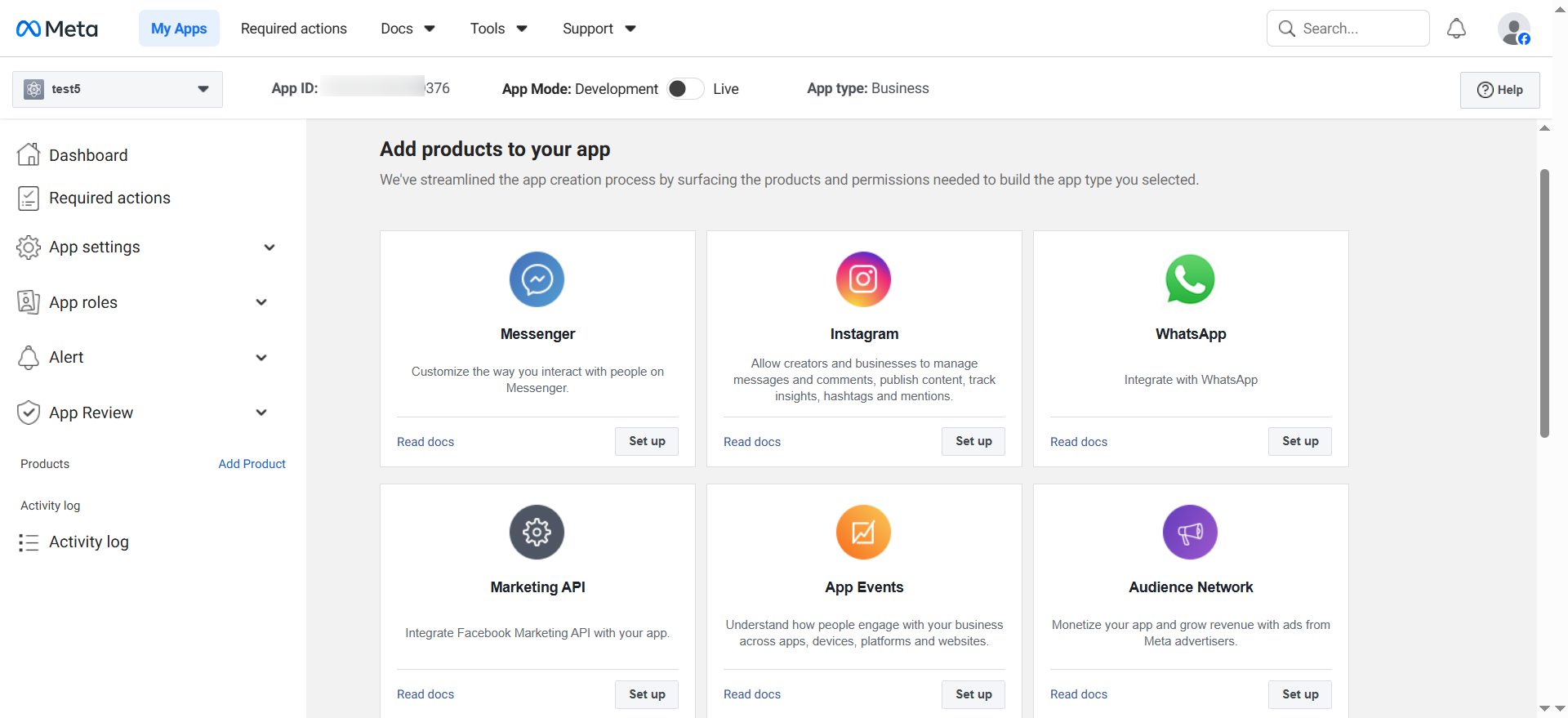
Select Business Type, click Next → check all App Details, click Next, then click Create App to go to the Dashboard.
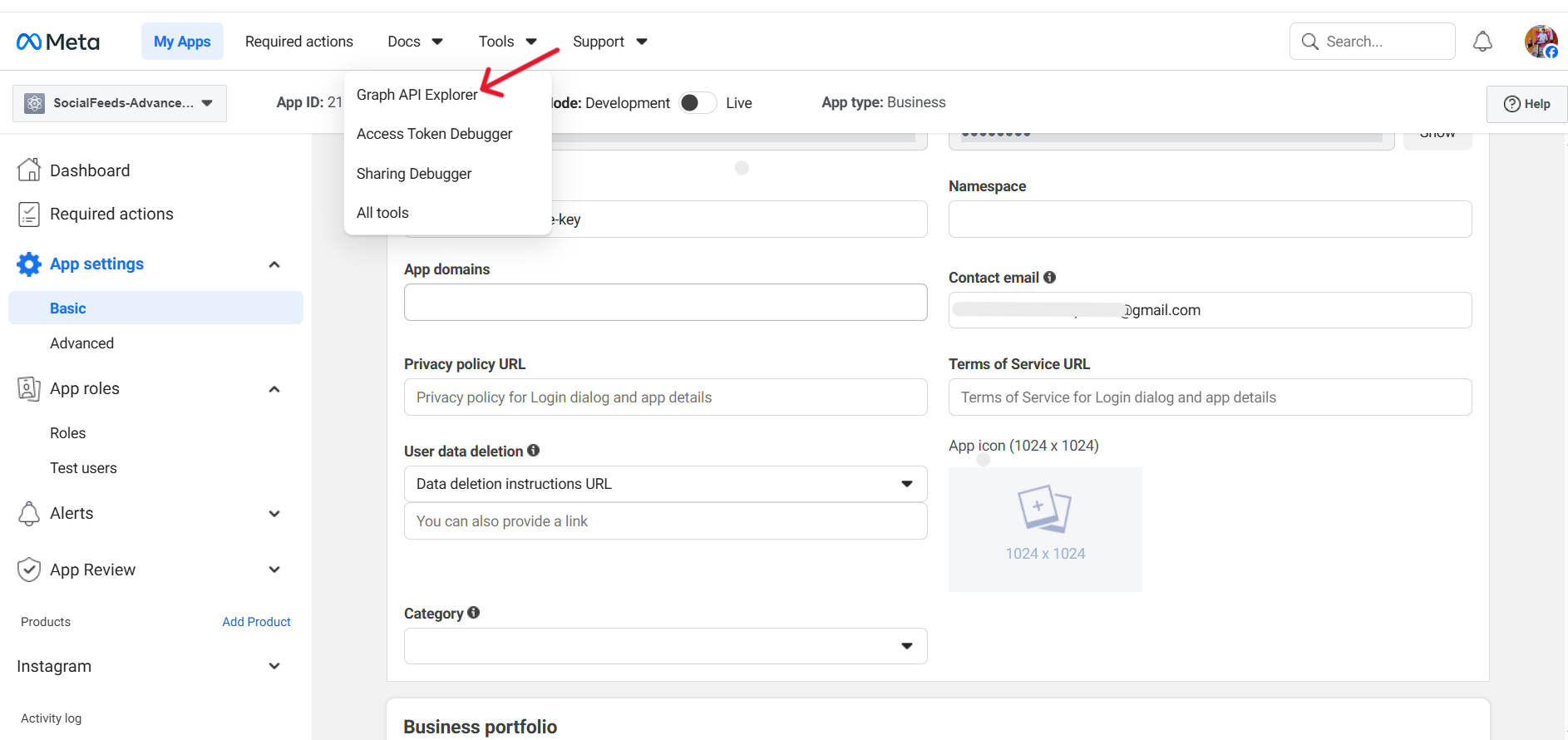
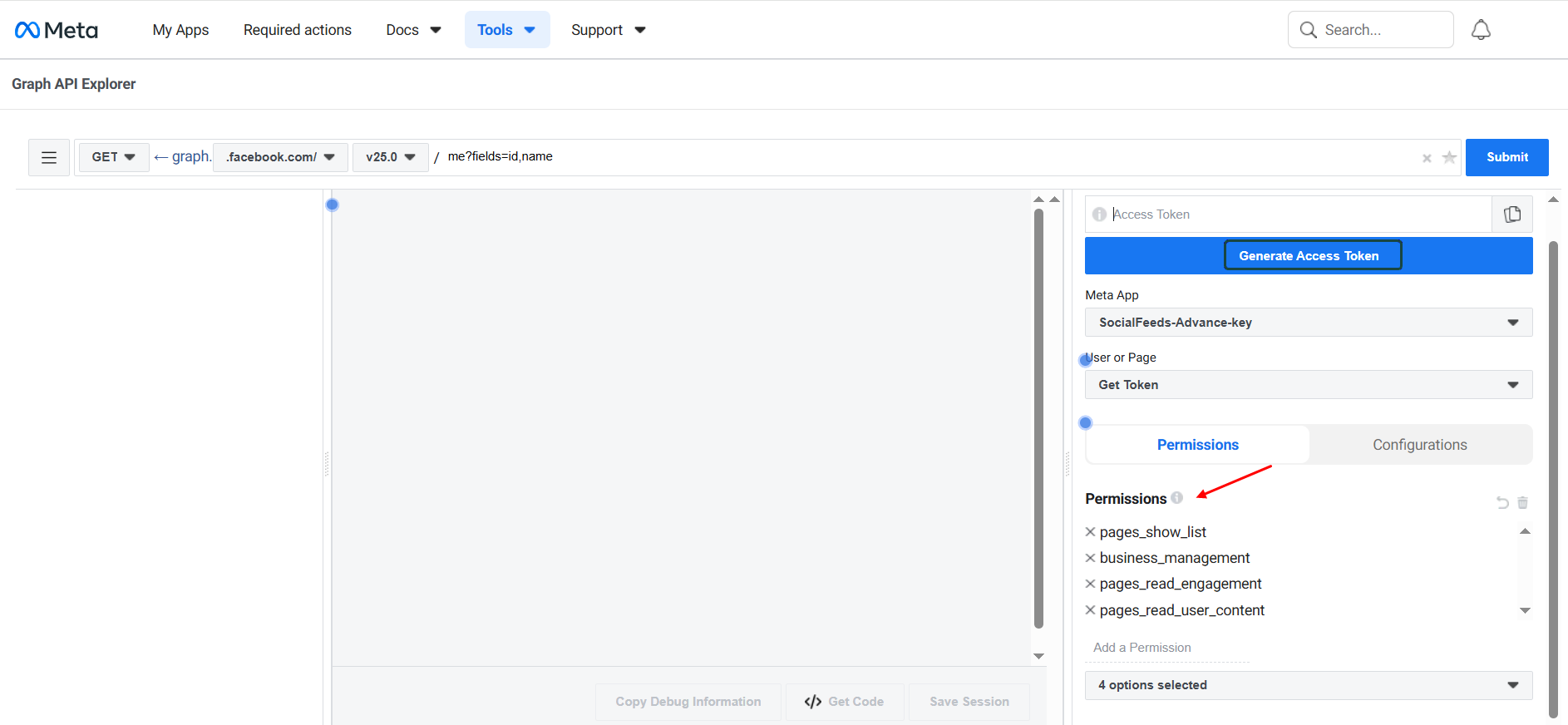
Then, navigate to Tools in the Meta for Developers dashboard and select Graph API Explorer. generate access tokens, and interact with your facebook data.
In Graph API Explorer, select your created Meta app and add the required permissions such as
business_management
pages_read_engagement
pages_read_user_content
pages_show_list
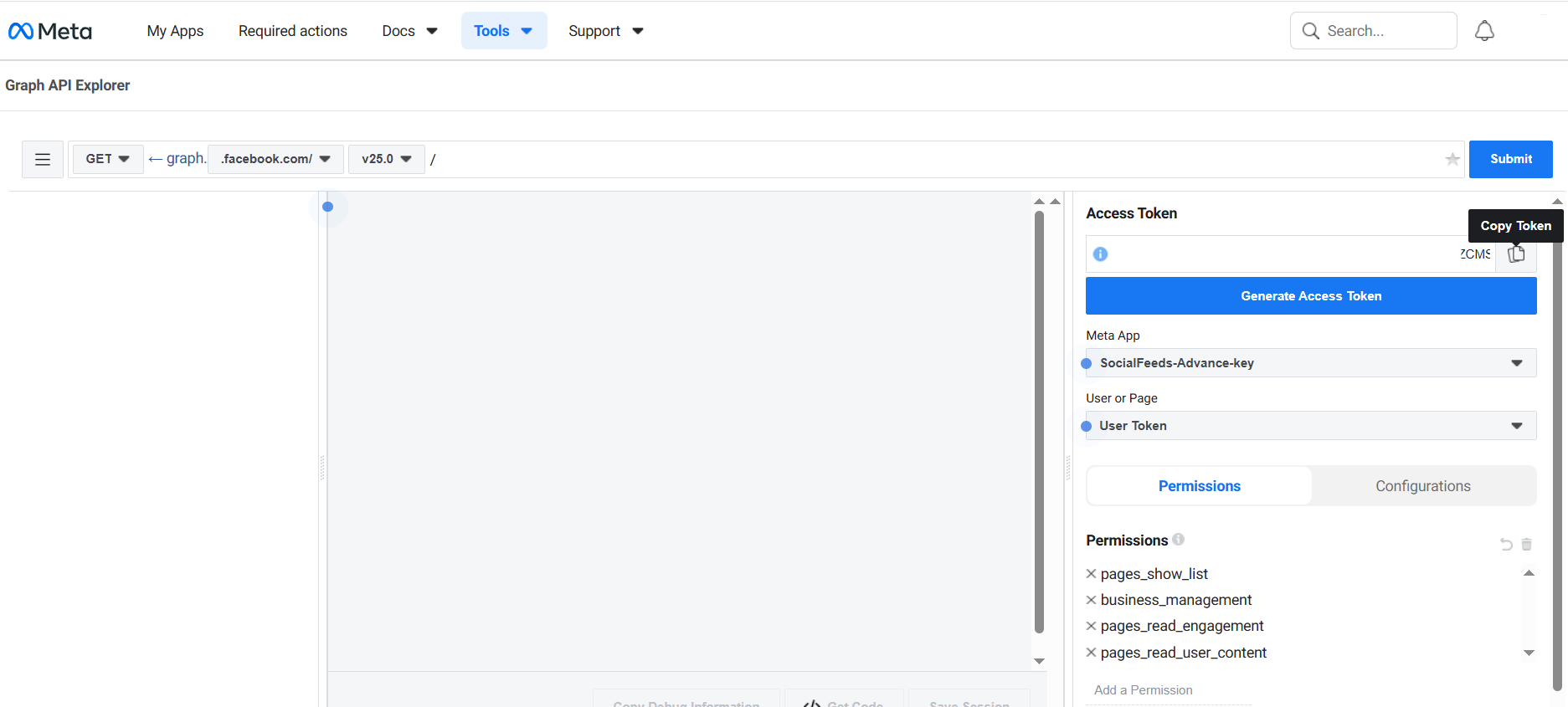
After adding all permissions, click “Generate Access Token”, log in to your Facebook account if prompted, and copy the generated access token.
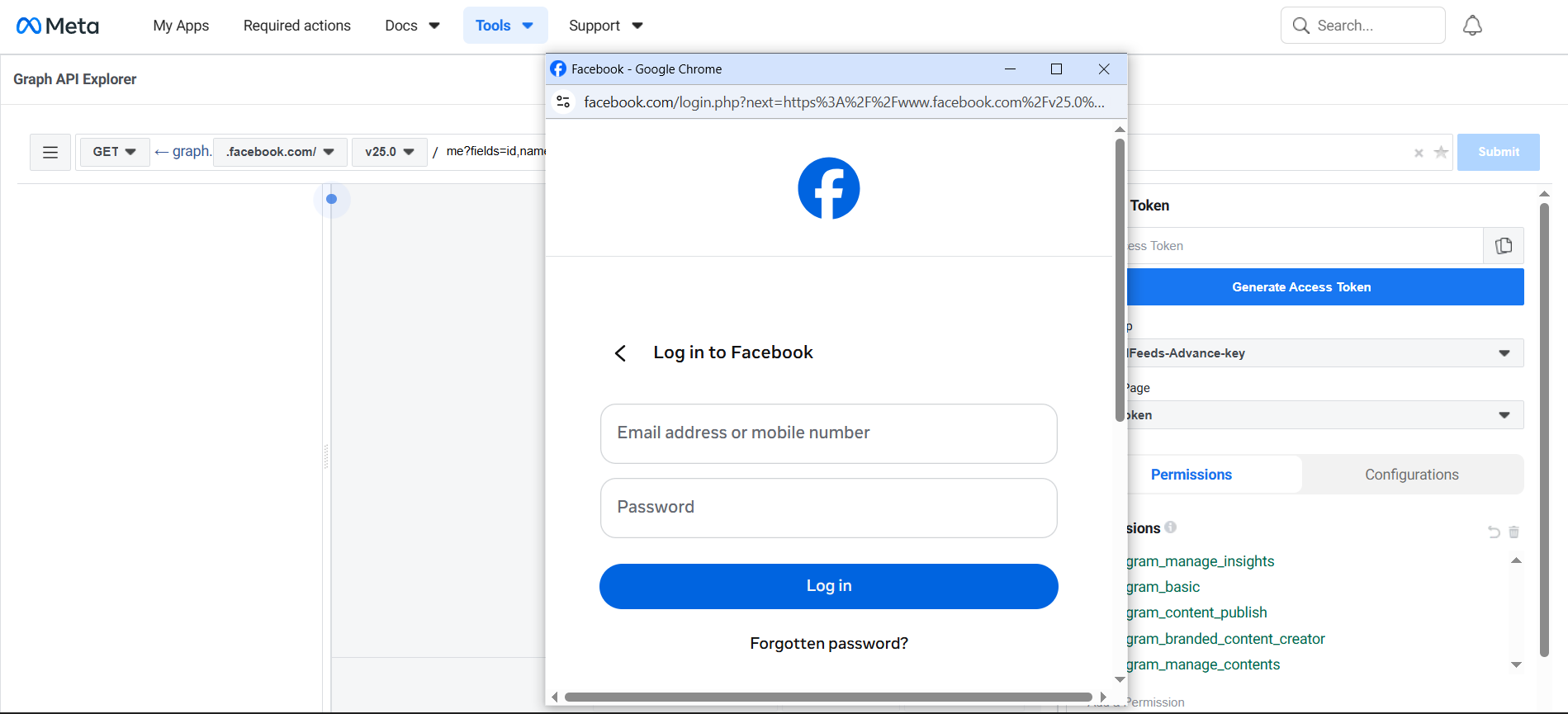
After clicking “Generate Access Token,” log in with your Facebook account and authorize the requested permissions to successfully generate the access token.
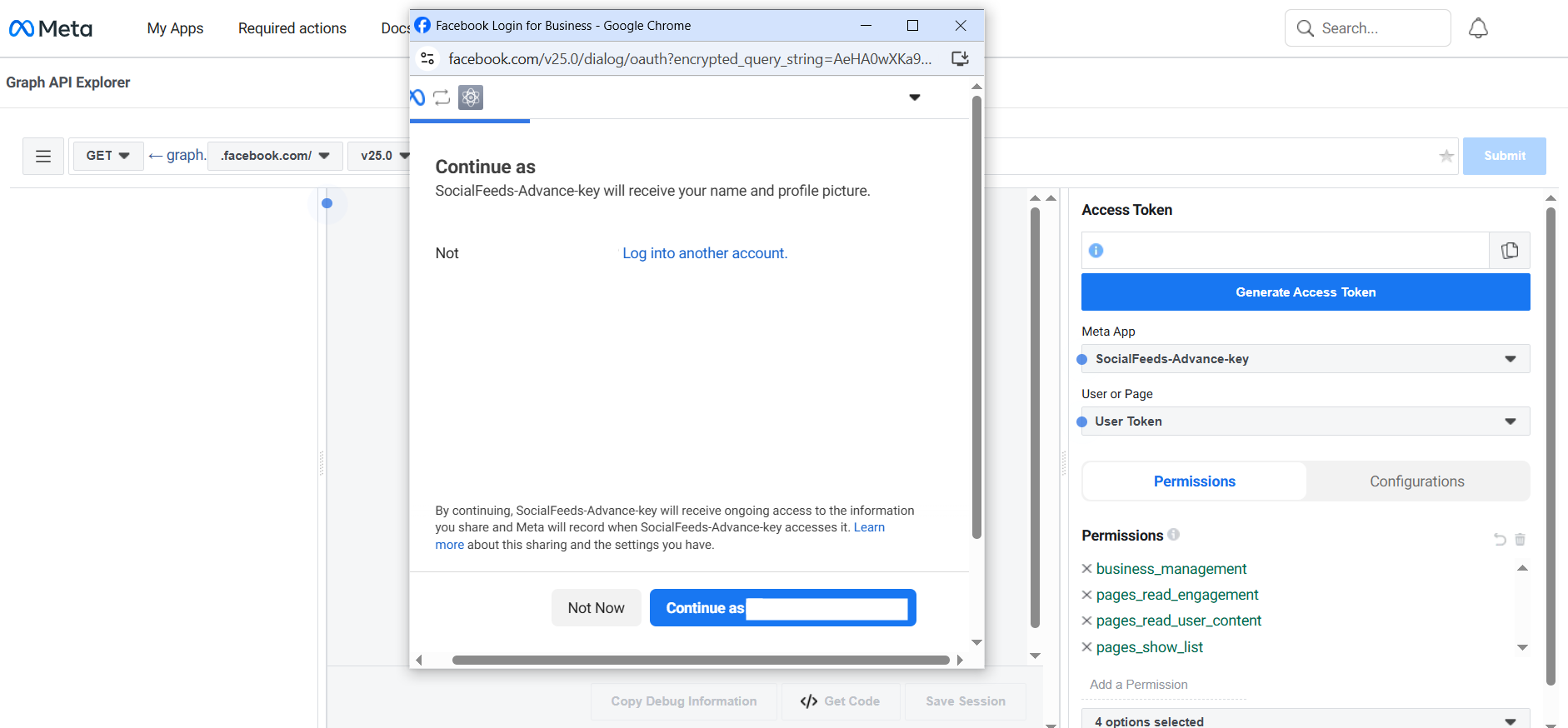
After entering your email and password, just click Continue as [your name]
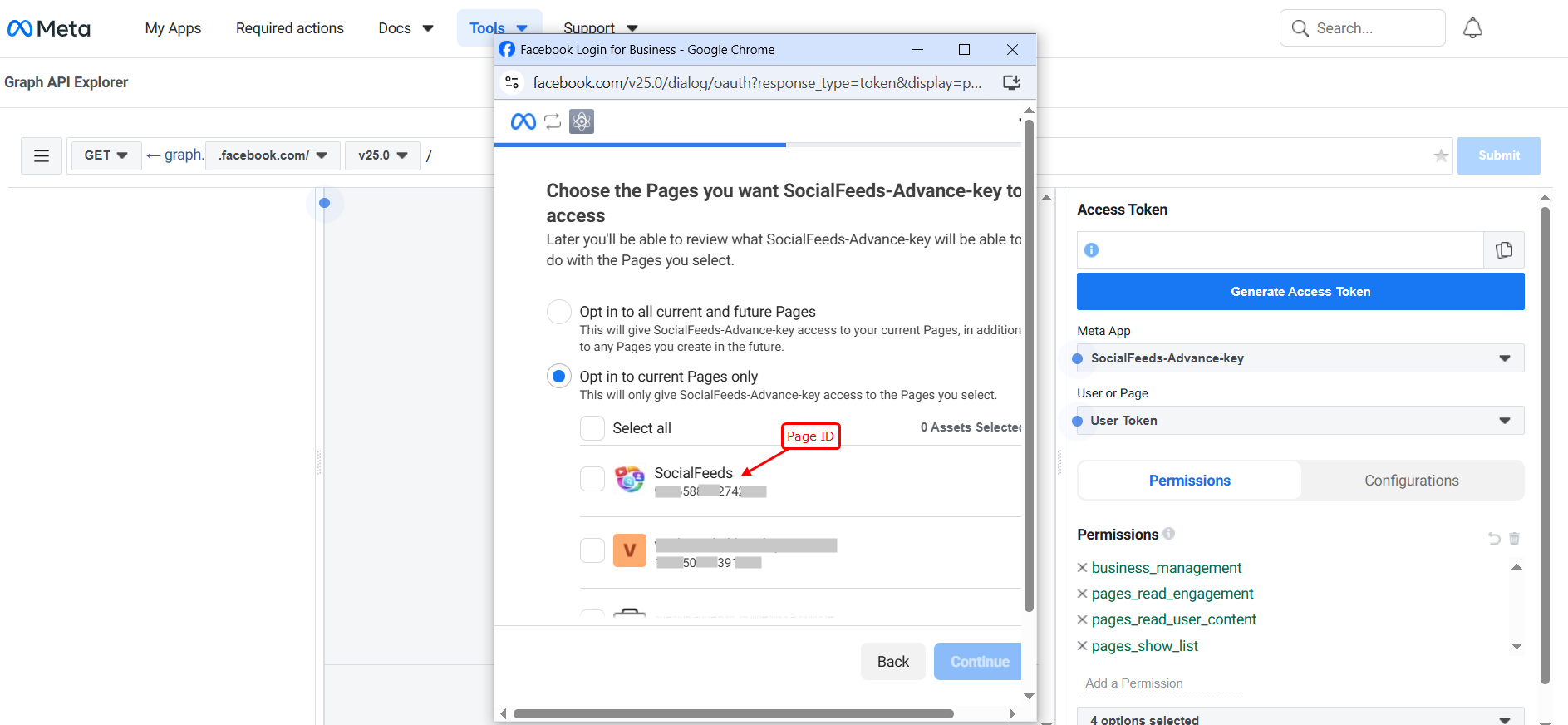
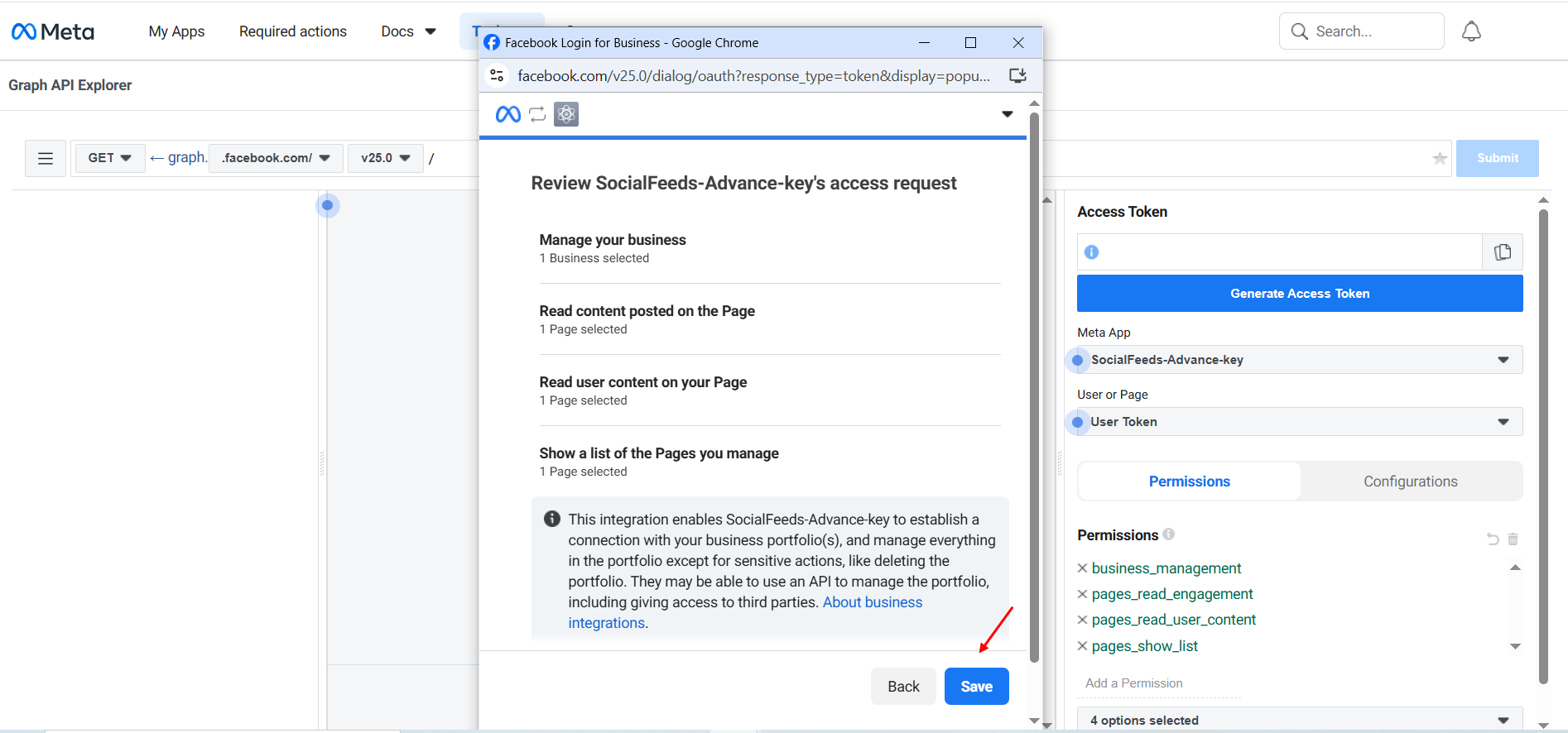
Then a new page will open showing your Pages list. Select the Page (Page ID) you want, and click “Continue.
Finally, click “Save”
The Access Token will be generated Copy the Access Token and use it as your Facebook Page Access Token
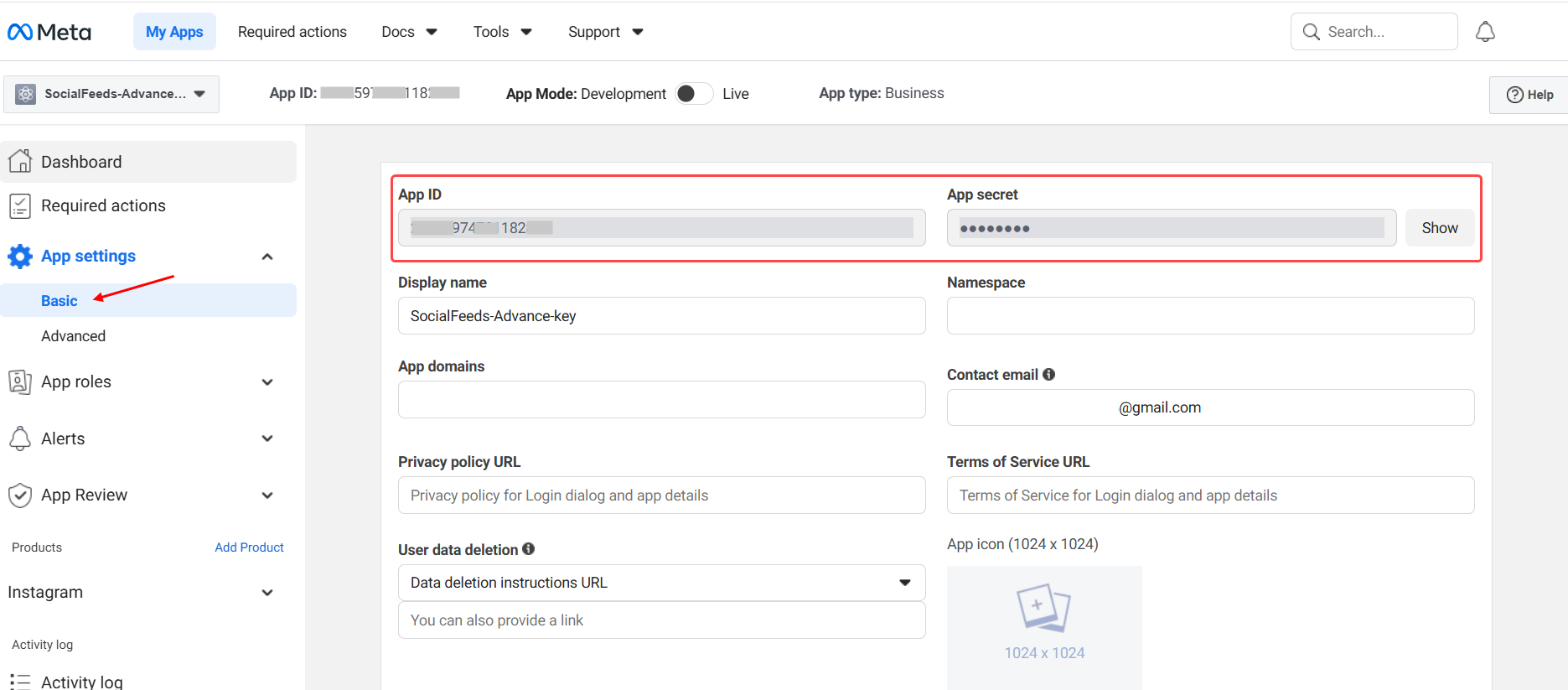
Go to the Facebook Developer Dashboard → App Settings → Basic, then copy your App ID and App Secret for use in authentication and access token generation.
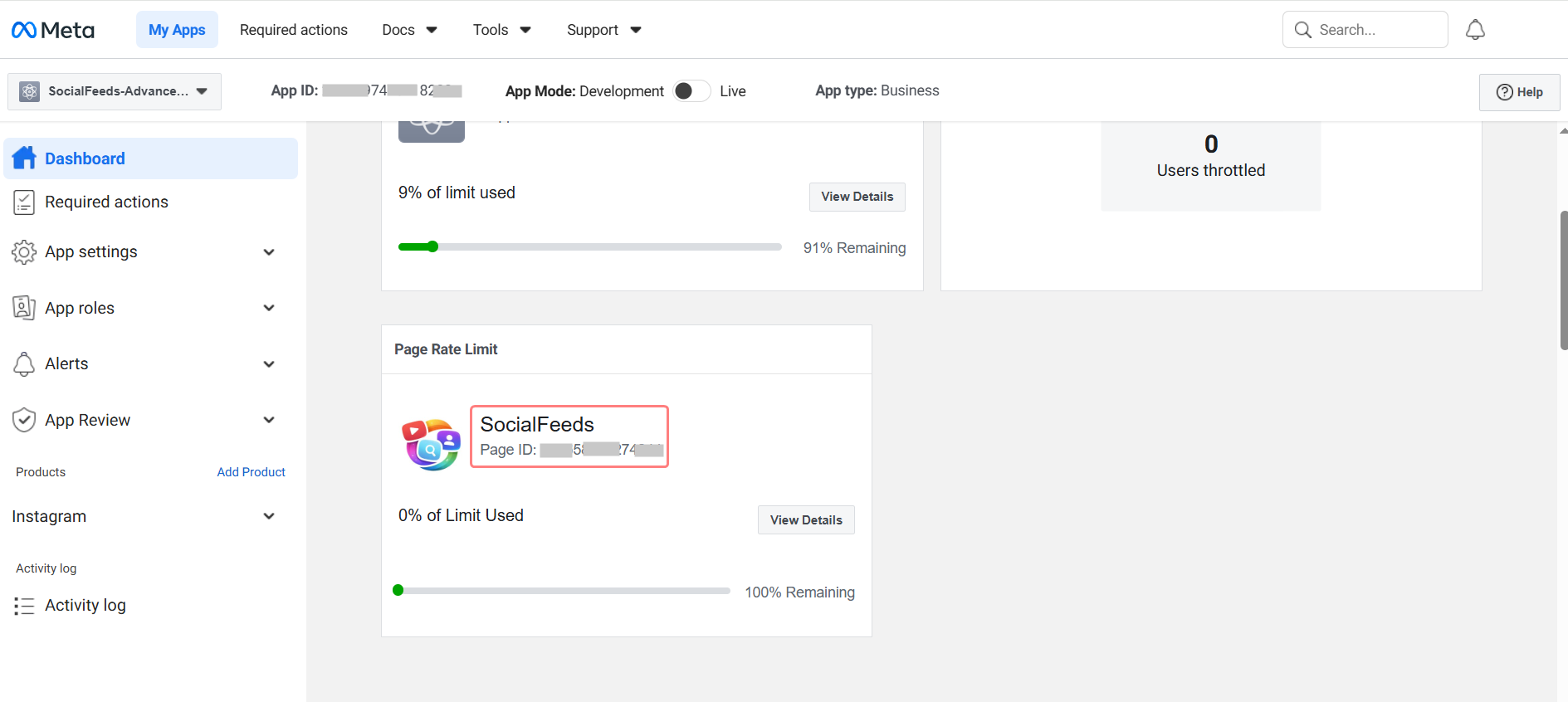
In the dashboard, go to the connected Pages section, copy the Page ID, and use it.
Complete setup in your Facebook Developer account, then go to your WordPress dashboard open Facebook configuration select “API Key (Recommended)”.
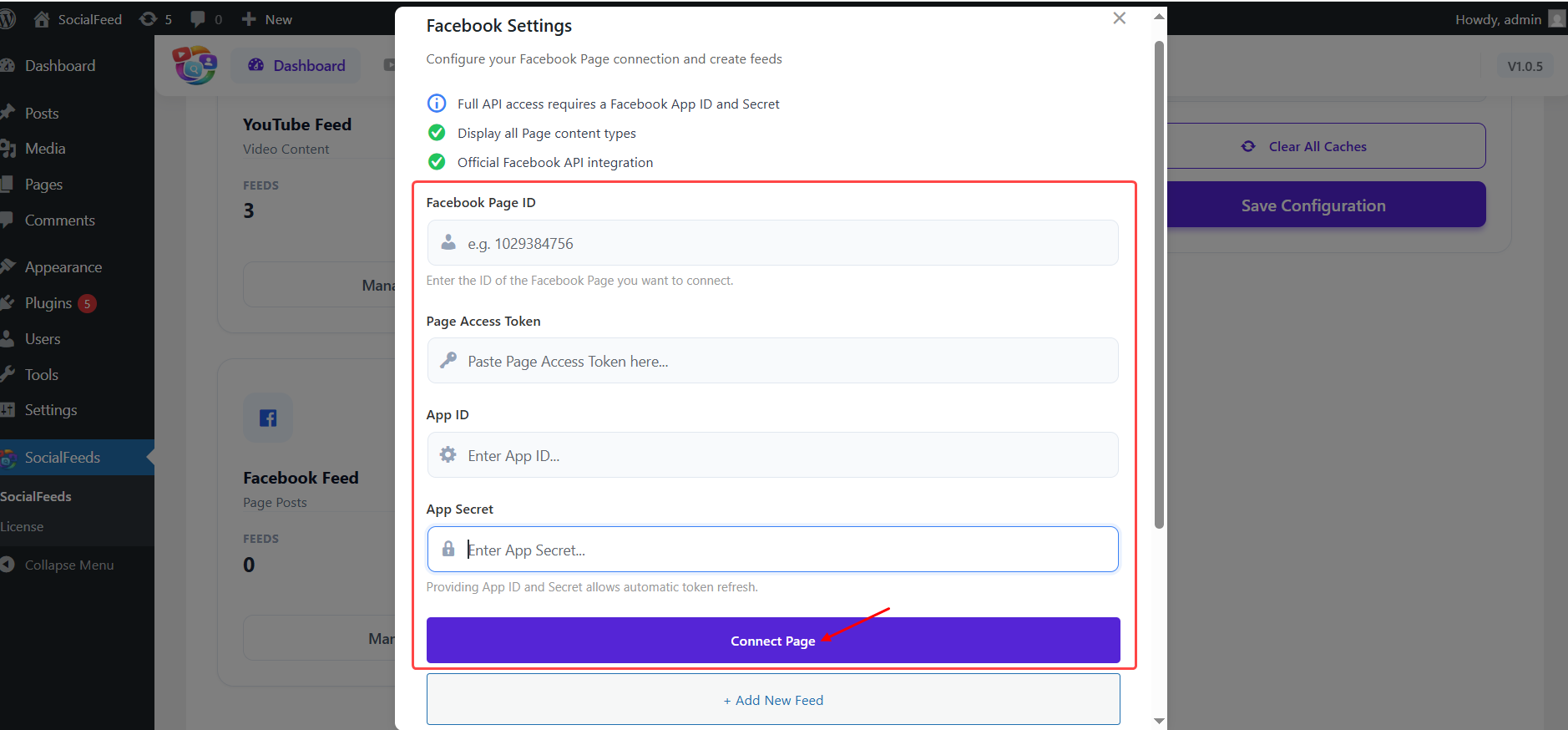
Enter API Key, Page ID, Page Access Token, App ID, and App Secret, then click “Connect Page” to successfully connect your Facebook account and enable the integration.