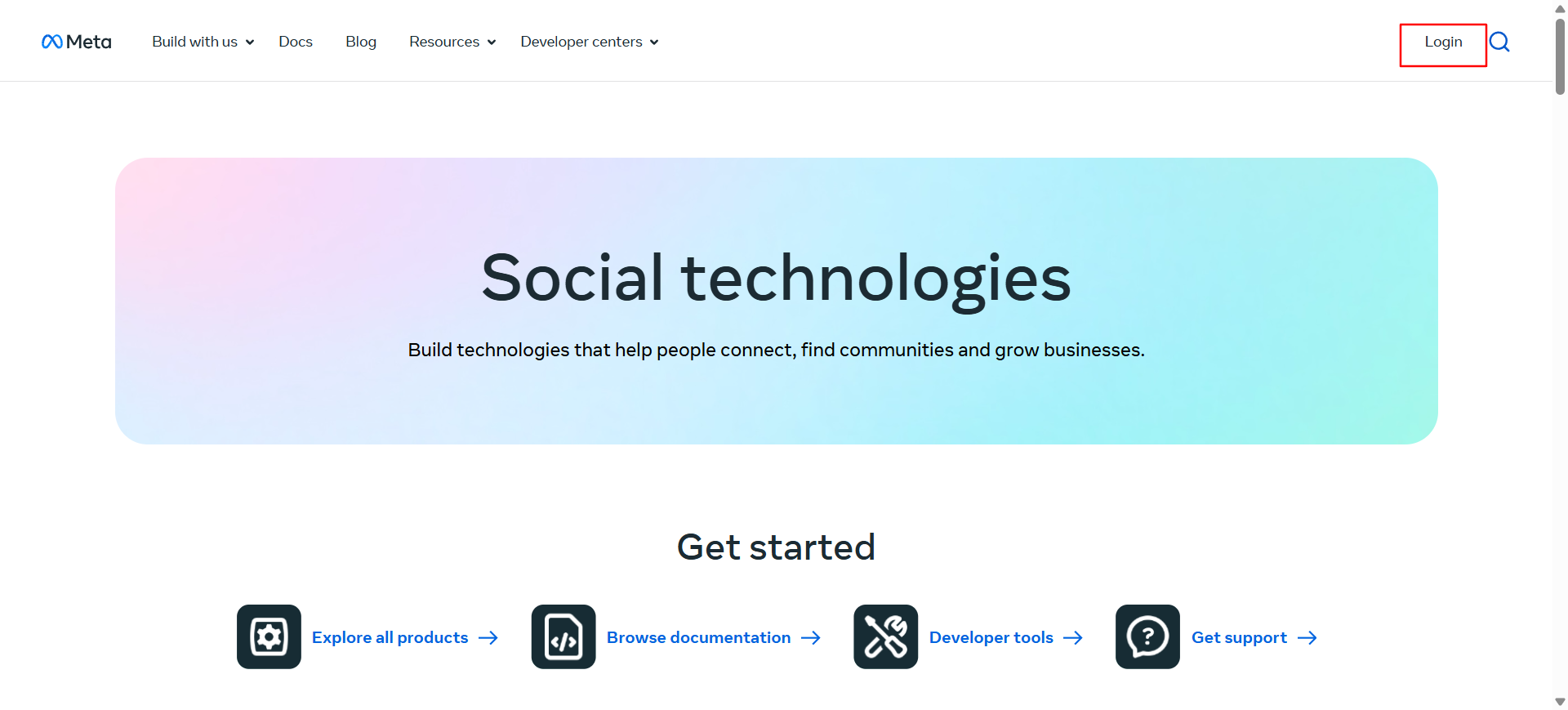
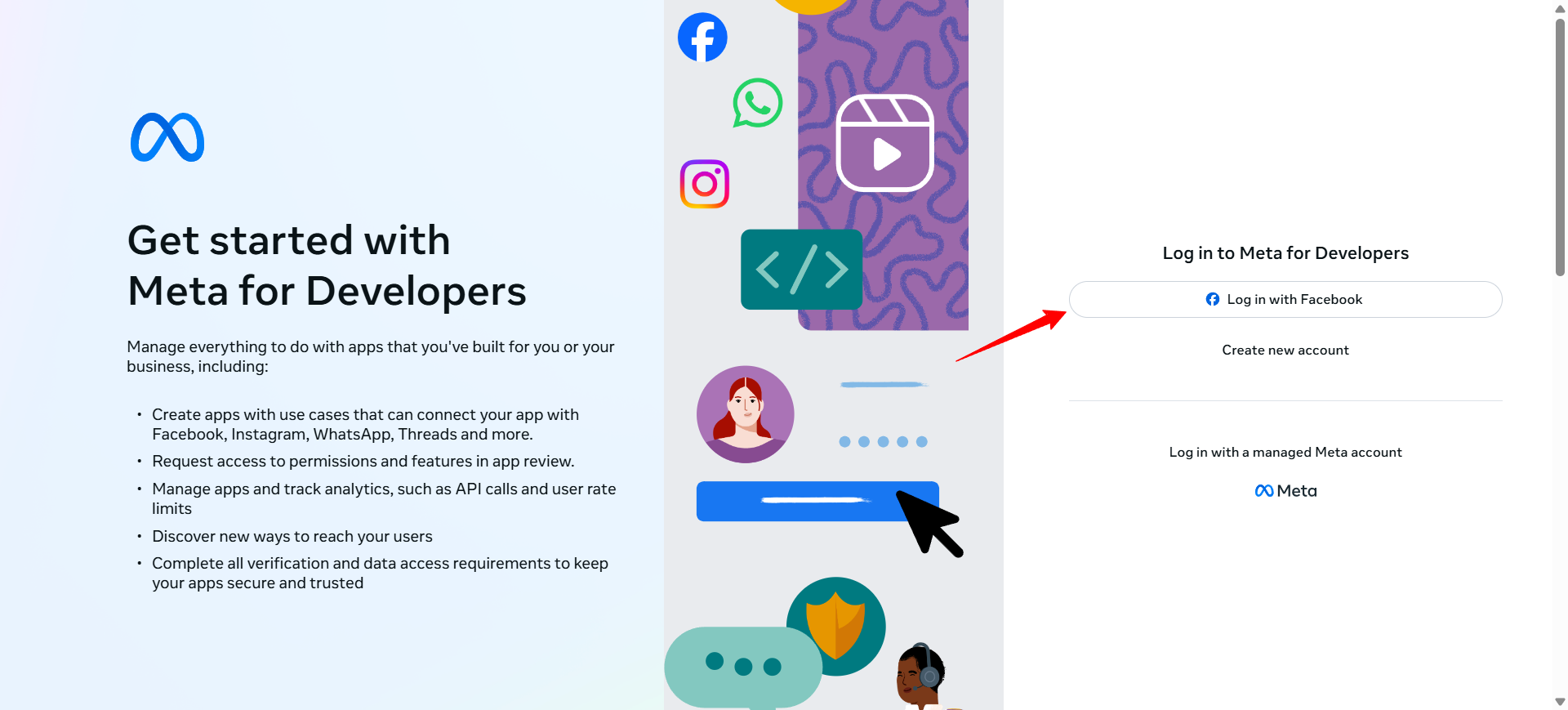
Create a Facebook for Developers account by entering your name, email, and password, or log in with an existing account.
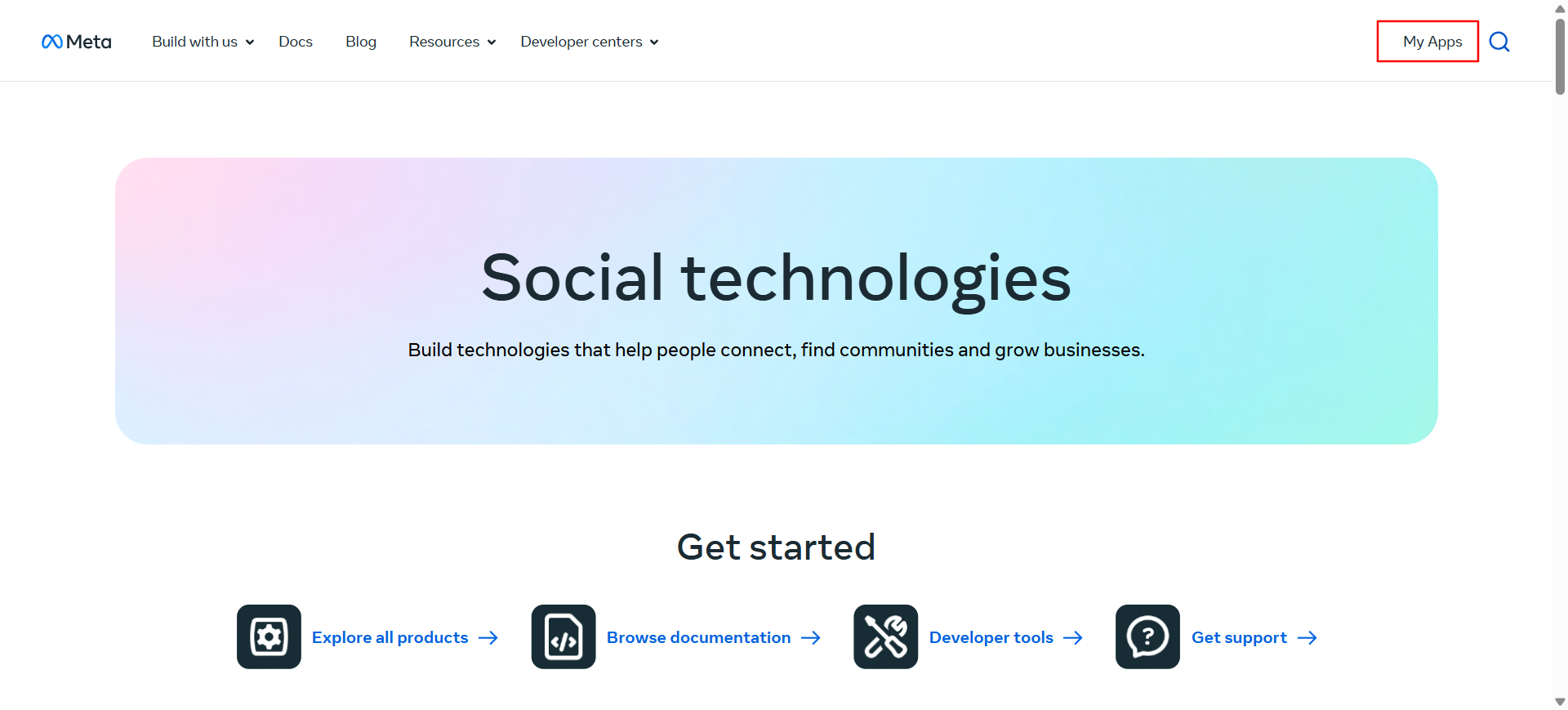
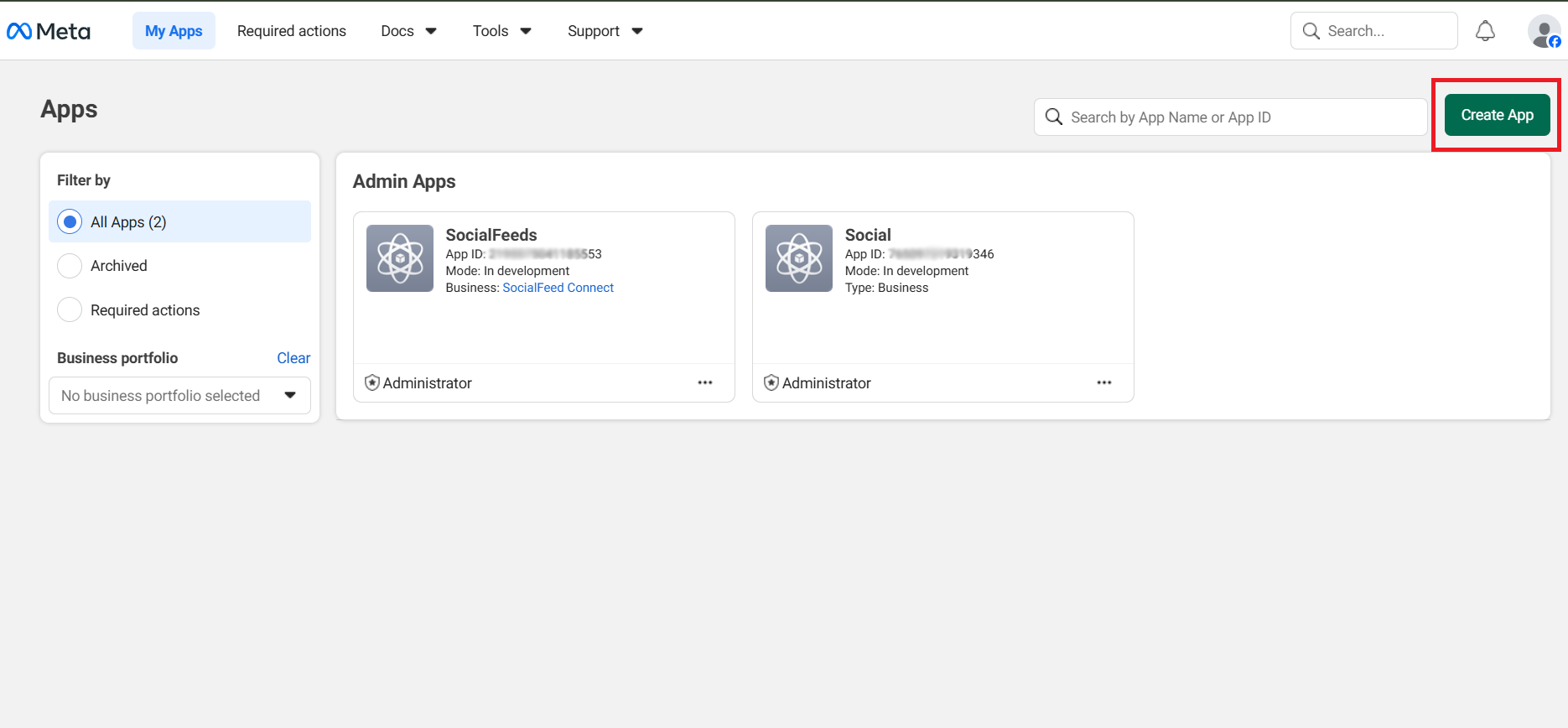
From the dashboard, click My Apps.
Click the Create App button.
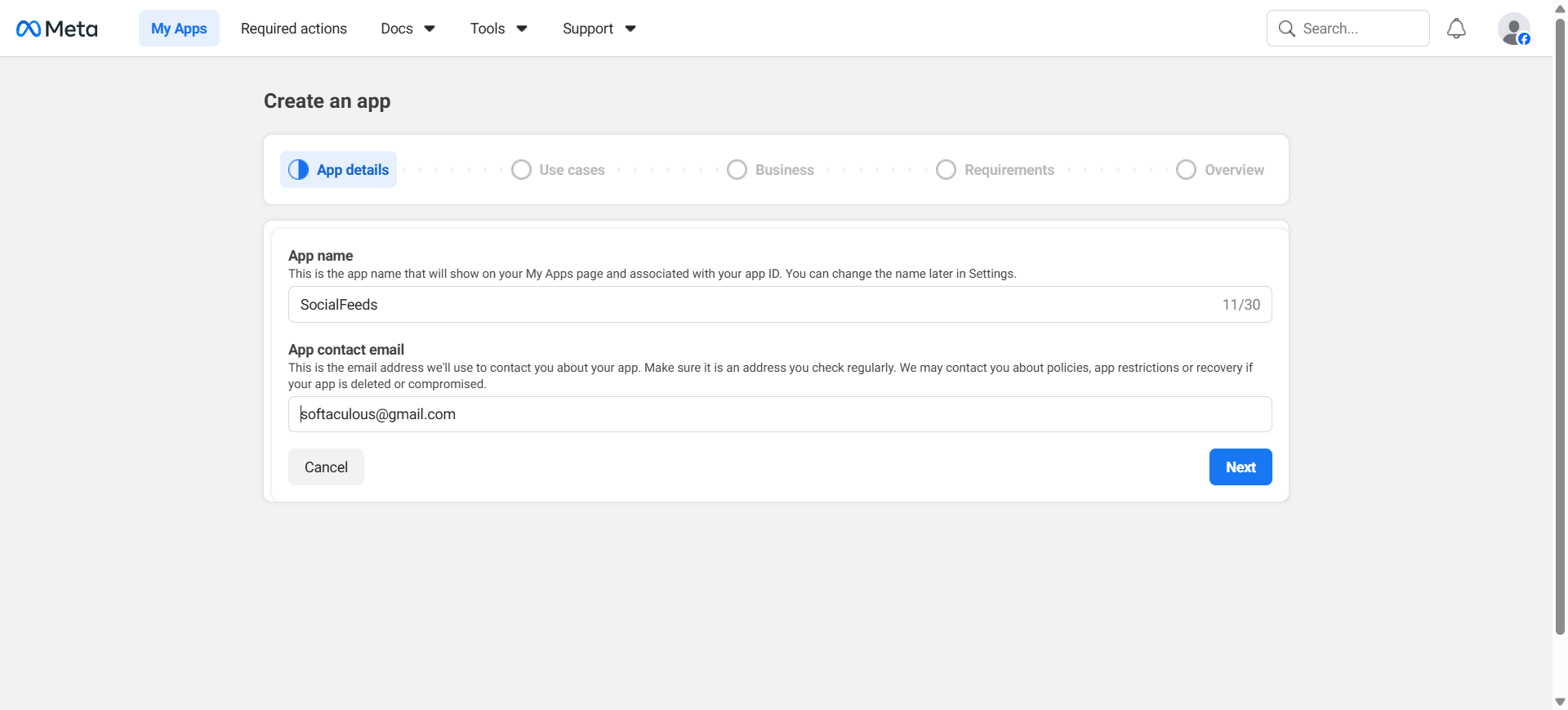
Then, fill in the details: enter an app name (e.g., “SocialFeeds”) and provide your contact email address.
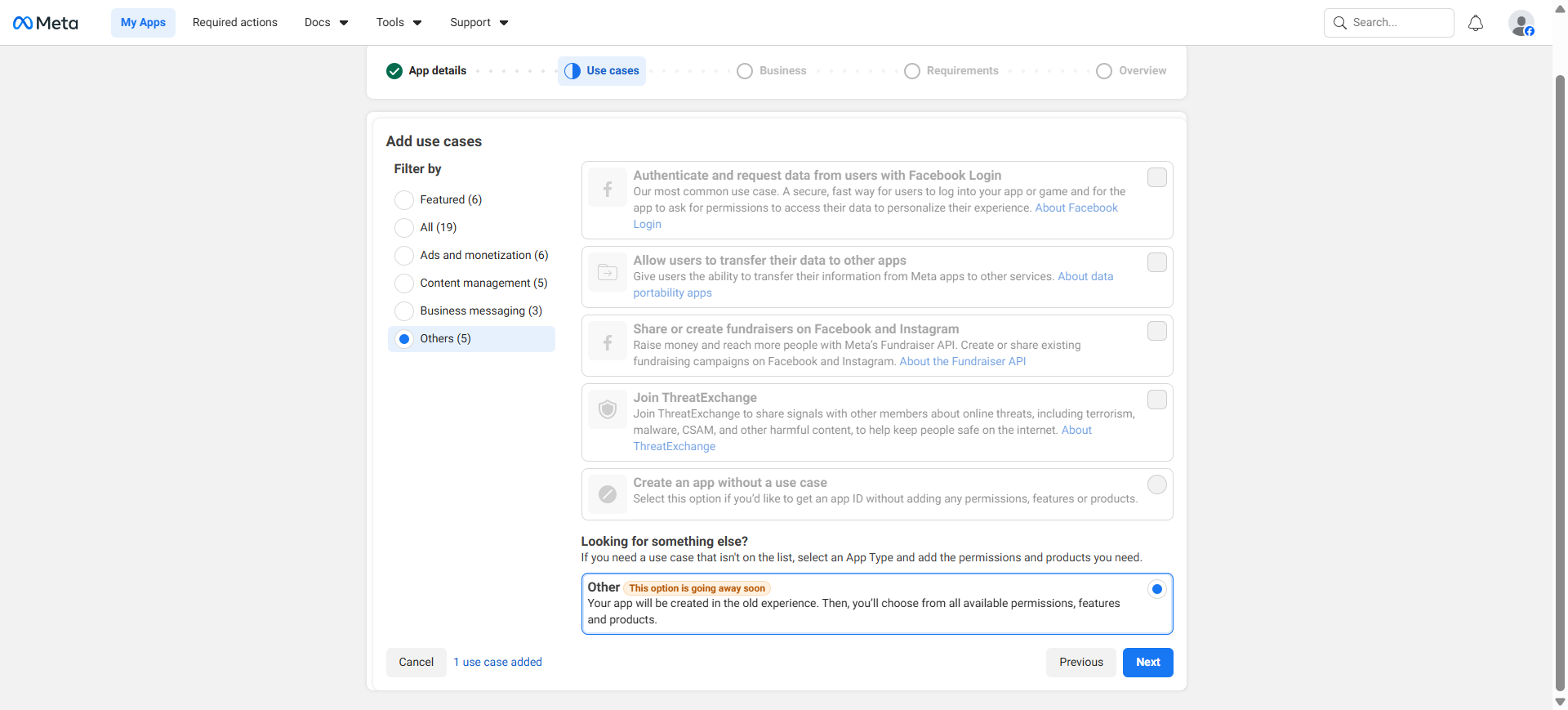
Click Other, enable the required permissions, then click Next.
Select Business Type, click Next → check all App Details, click Next, then click Create App to go to the Dashboard.
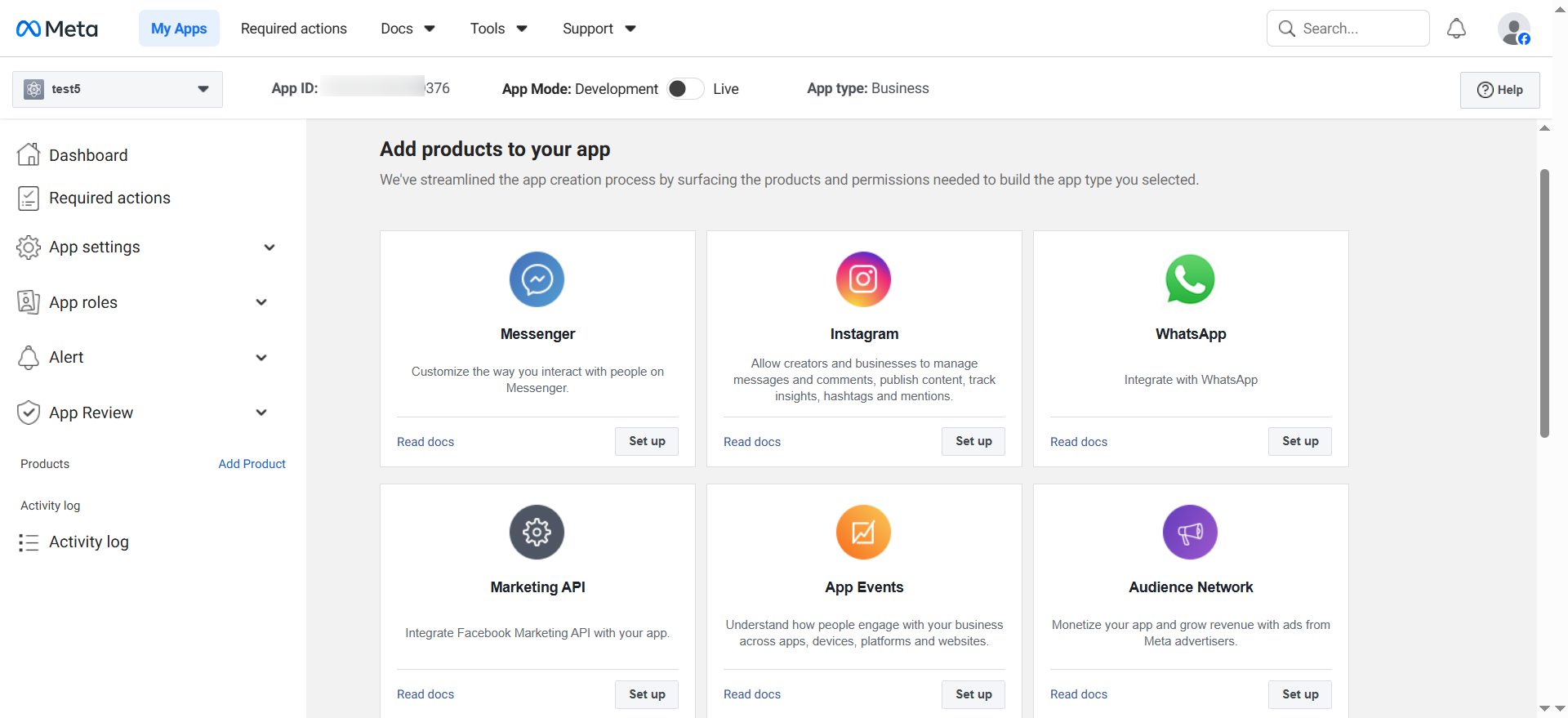
In the Dashboard select Instagram → click Set Up → then click Add Account to connect your Instagram account.
Click Continue, then enter your Instagram username and password to connect your Instagram account.
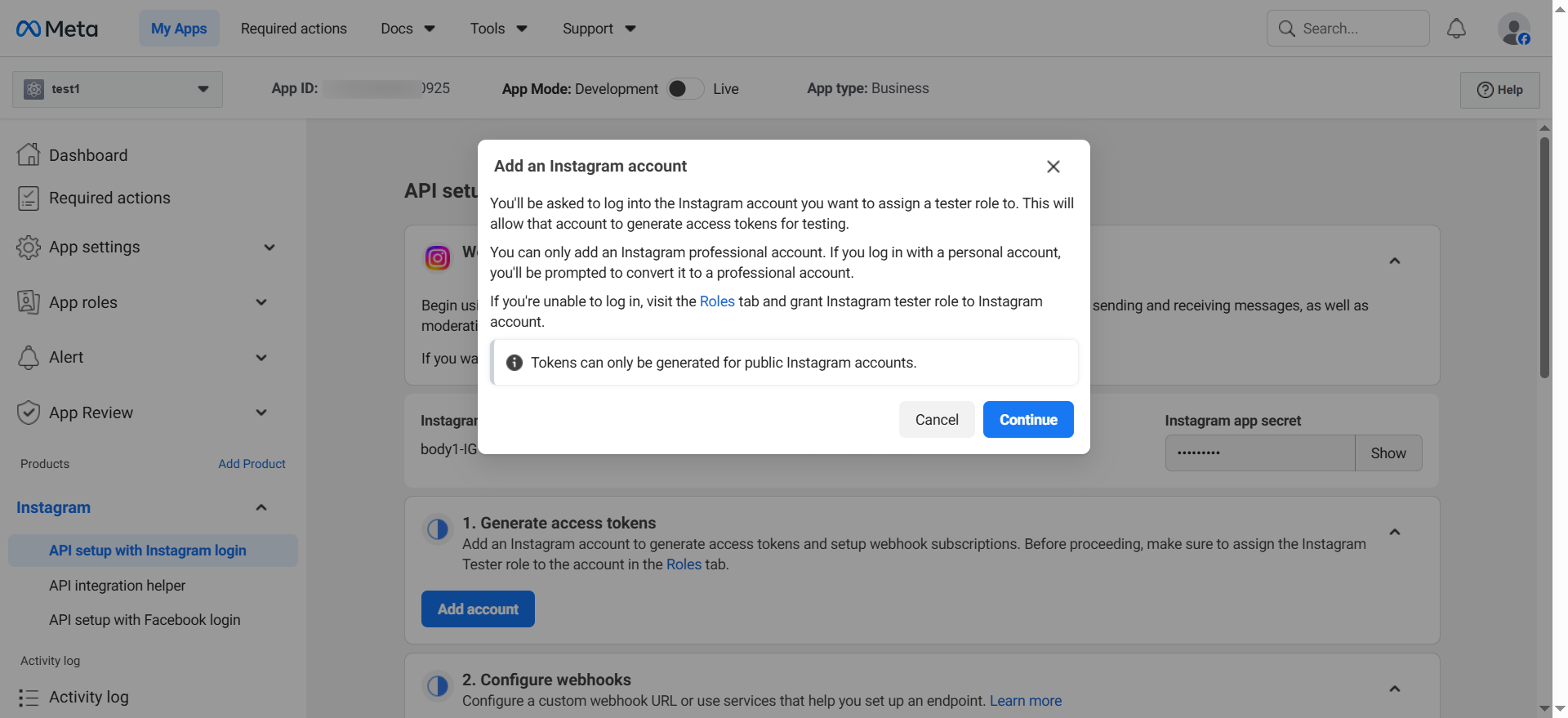
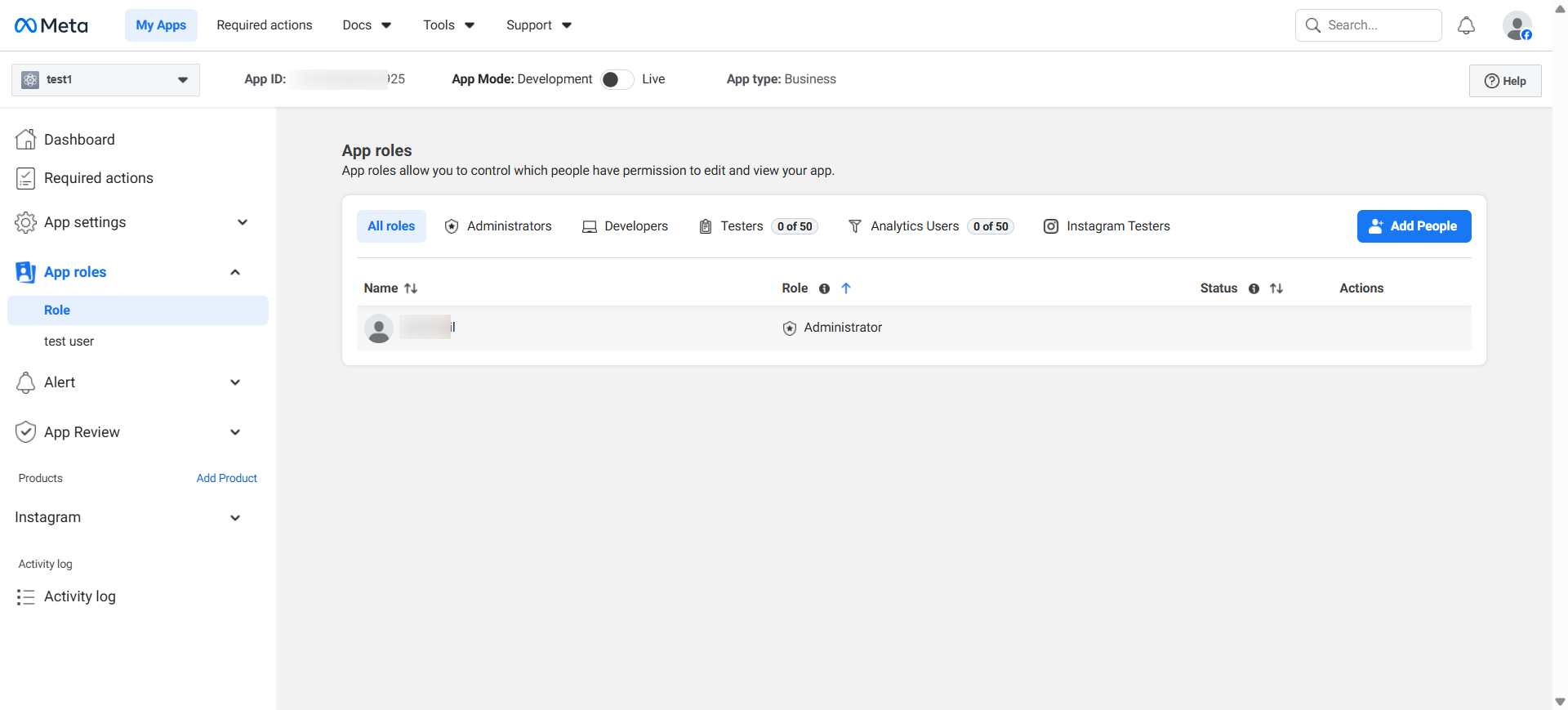
Add an Instagram tester role: Go to the Dashboard → App Roles → Role in the left sidebar.
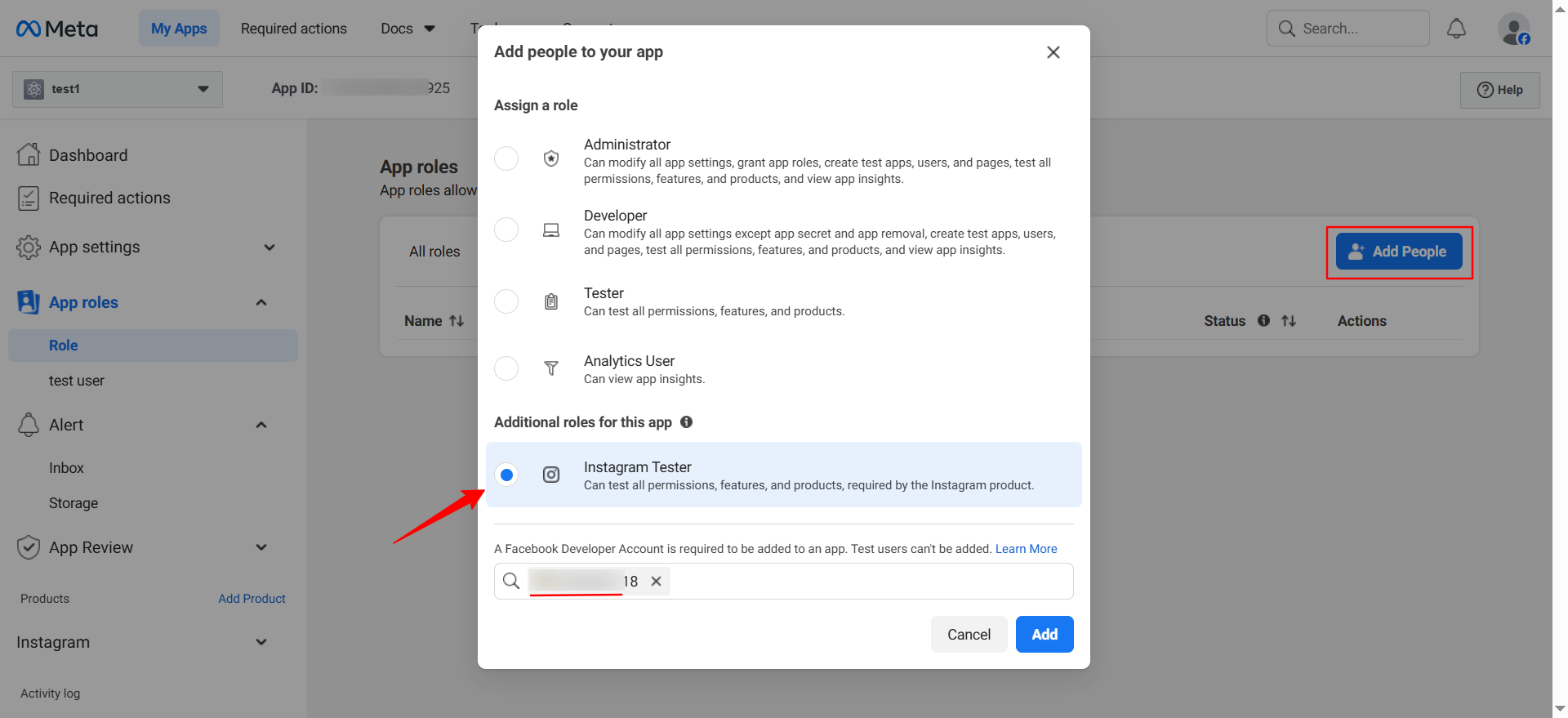
Click Add People, select the Instagram tester, search for their account, and add them as a Tester. The tester must log in to Instagram and accept the invitation.
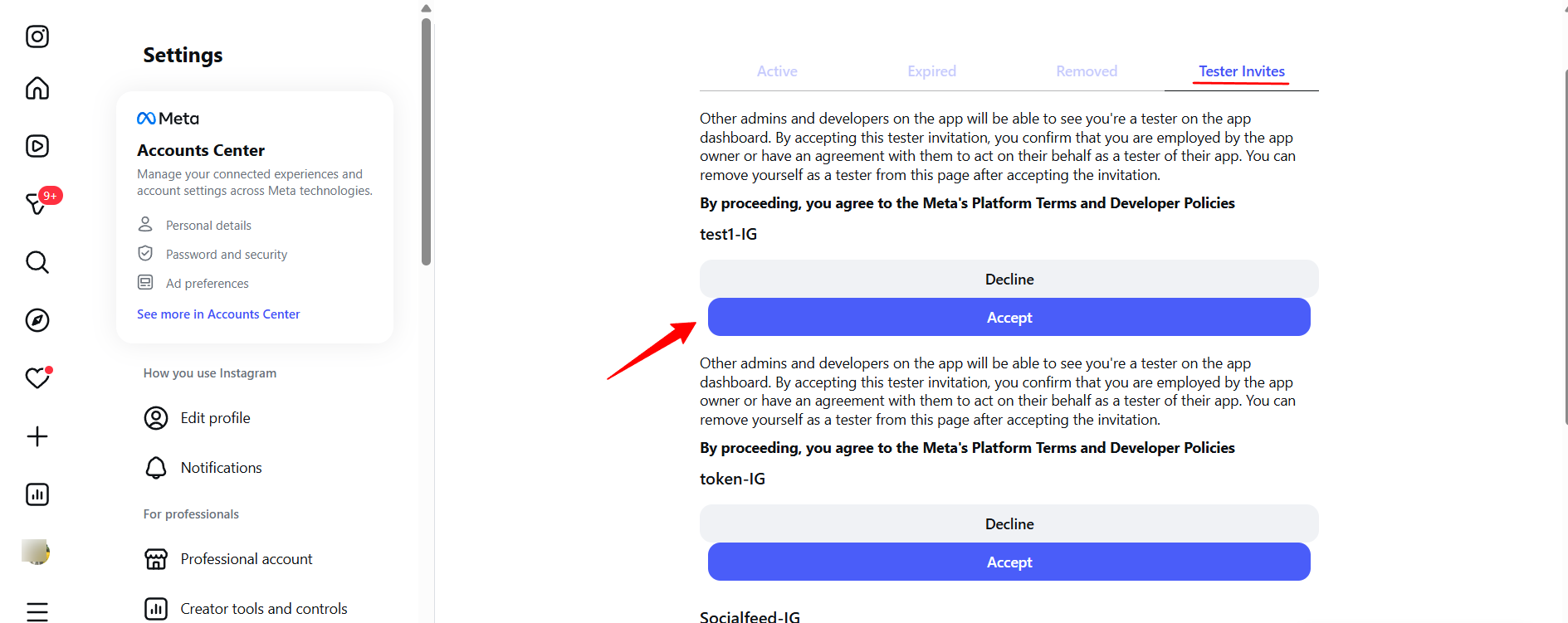
Log in to Instagram (mobile) and accept the tester invite: go to Profile → Settings → Privacy & Security → Apps and Websites (on web) or Profile → Menu → Settings → Security → Apps and Websites (on mobile), find the Tester Invites section, and click Accept for your app invitation. Note: If the invitation doesn’t appear, wait a few minutes and refresh the page.
Generate your Access Token:
Return to the Meta Developer Dashboard
Go to Products → Instagram → Generate Access Tokens → Add Account
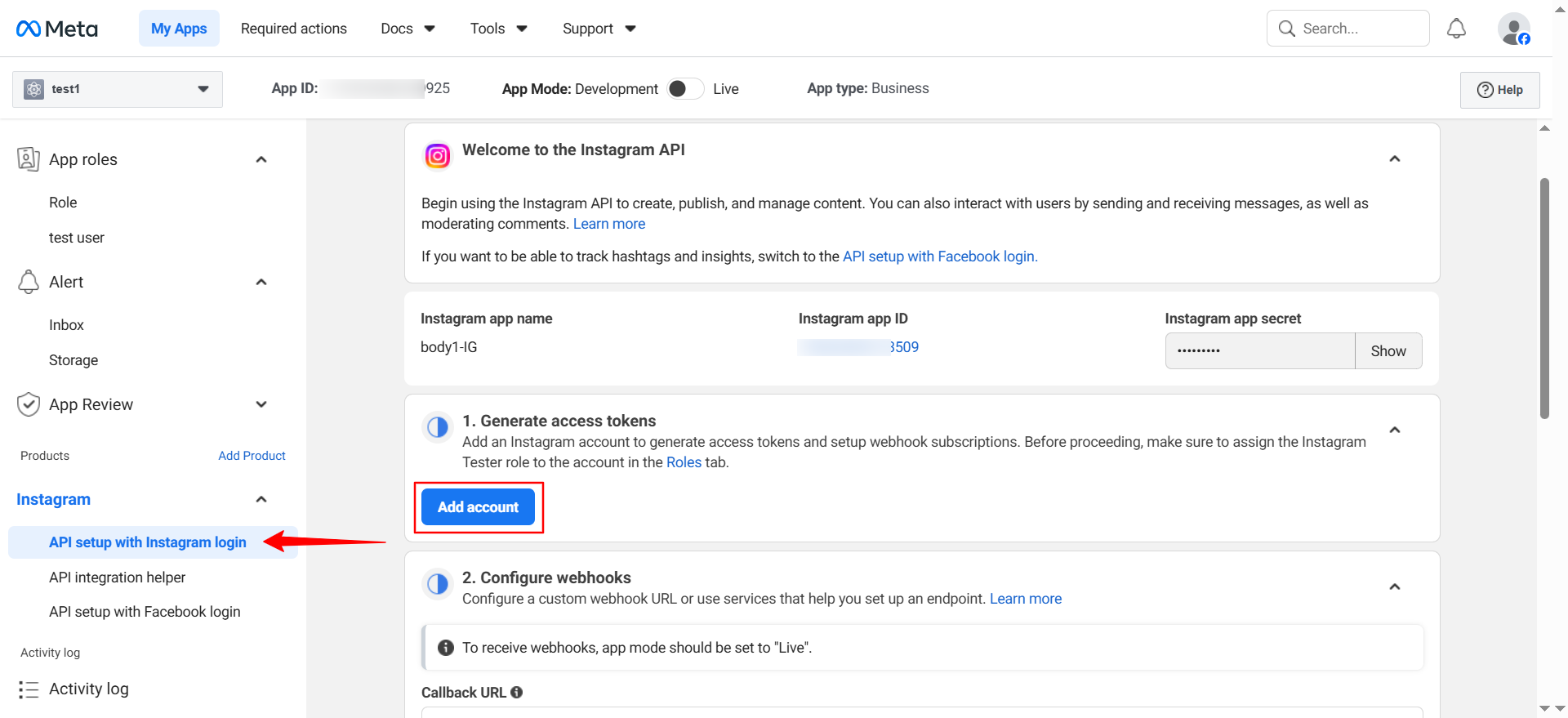
Login with your Instagram account that is linked to a Facebook Page. After the account is added and authorized, retrieve the Instagram User ID using the Graph API and use this ID to complete the advanced Instagram connection.
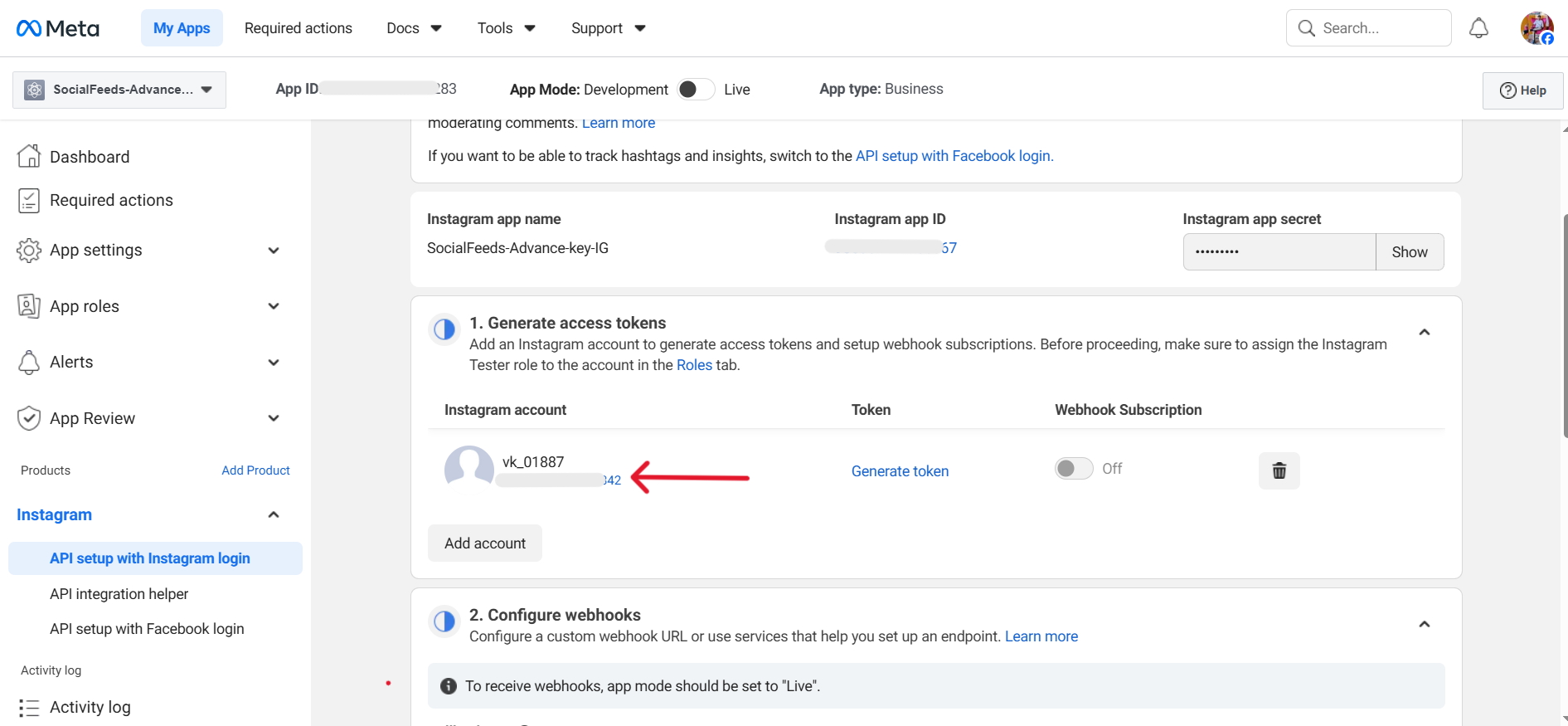
Copy the generated User ID token and store it securely — this is your Instagram USER ID.
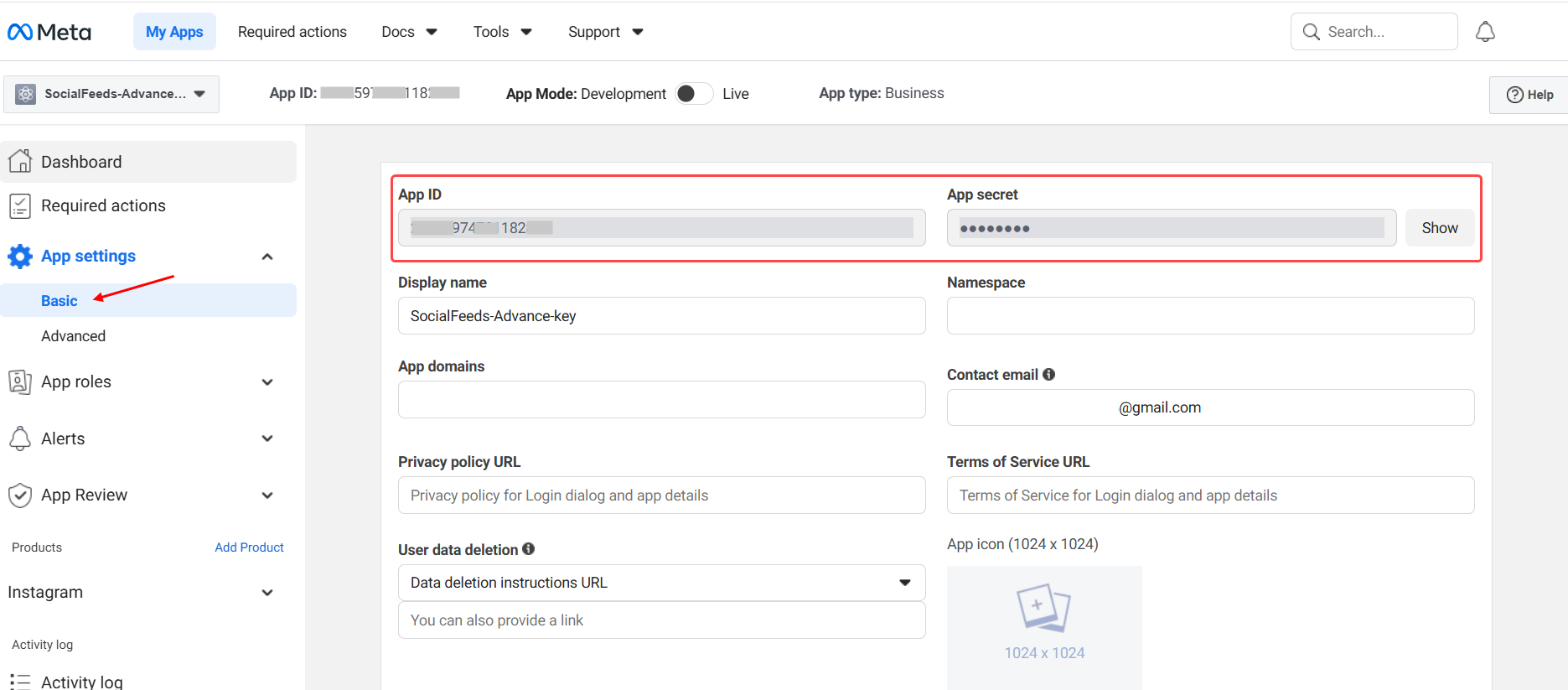
Then access your Instagram App ID and Instagram App Secret by going to App Settings → Basic. There, you can view and copy the App ID and reveal the App Secret, which are required for authentication and for generating access tokens to connect to the advanced Instagram API.
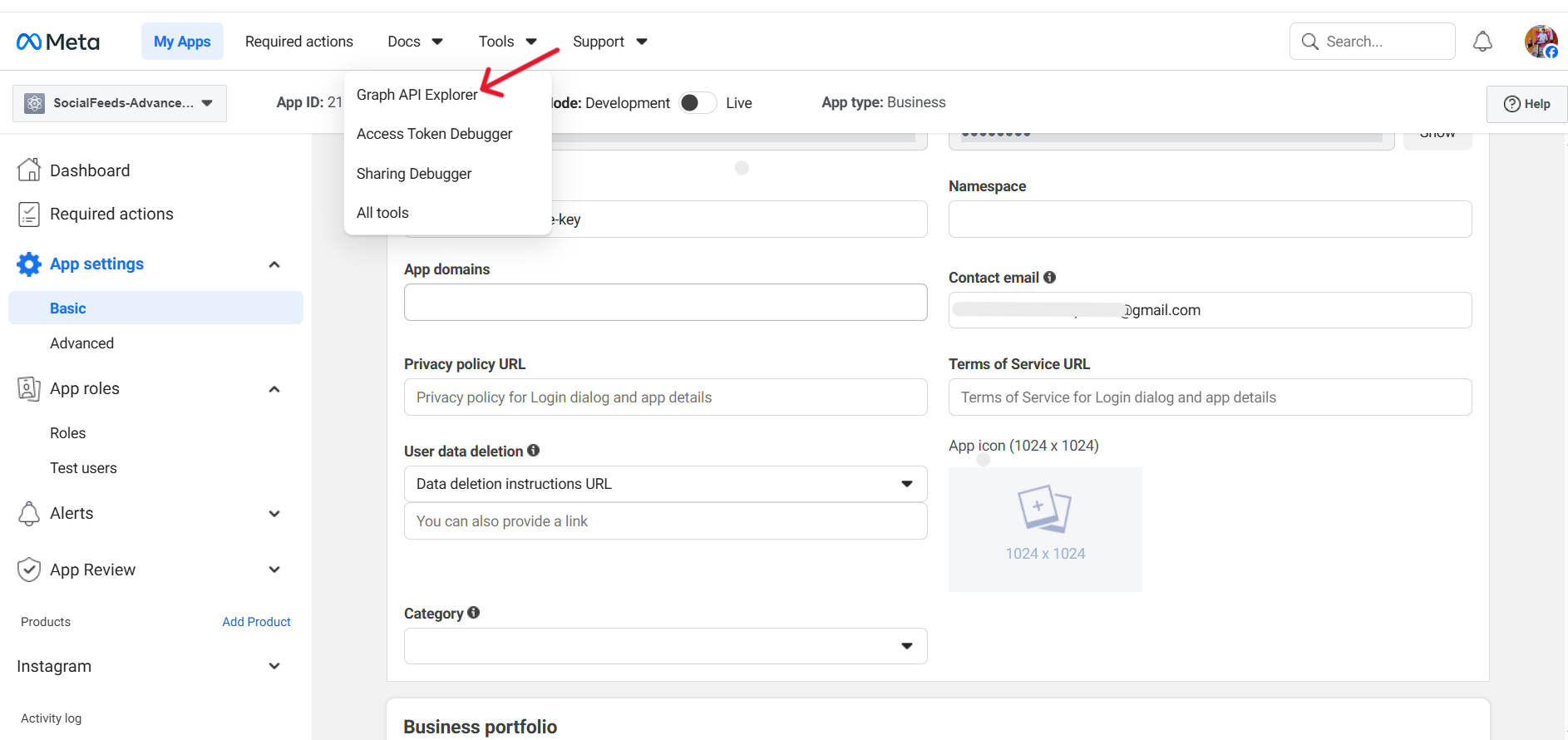
Then, navigate to Tools in the Meta for Developers dashboard and select Graph API Explorer. generate access tokens, and interact with your Instagram data.
Select the Meta app you created in Graph API Explorer. Then add the required permissions, including pages_show_list, instagram_basic, instagram_manage_comments, instagram_manage_insights, instagram_content_publish, and other necessary Instagram permissions. After adding all required permissions, click on “Generate Access Token” to create the access token.
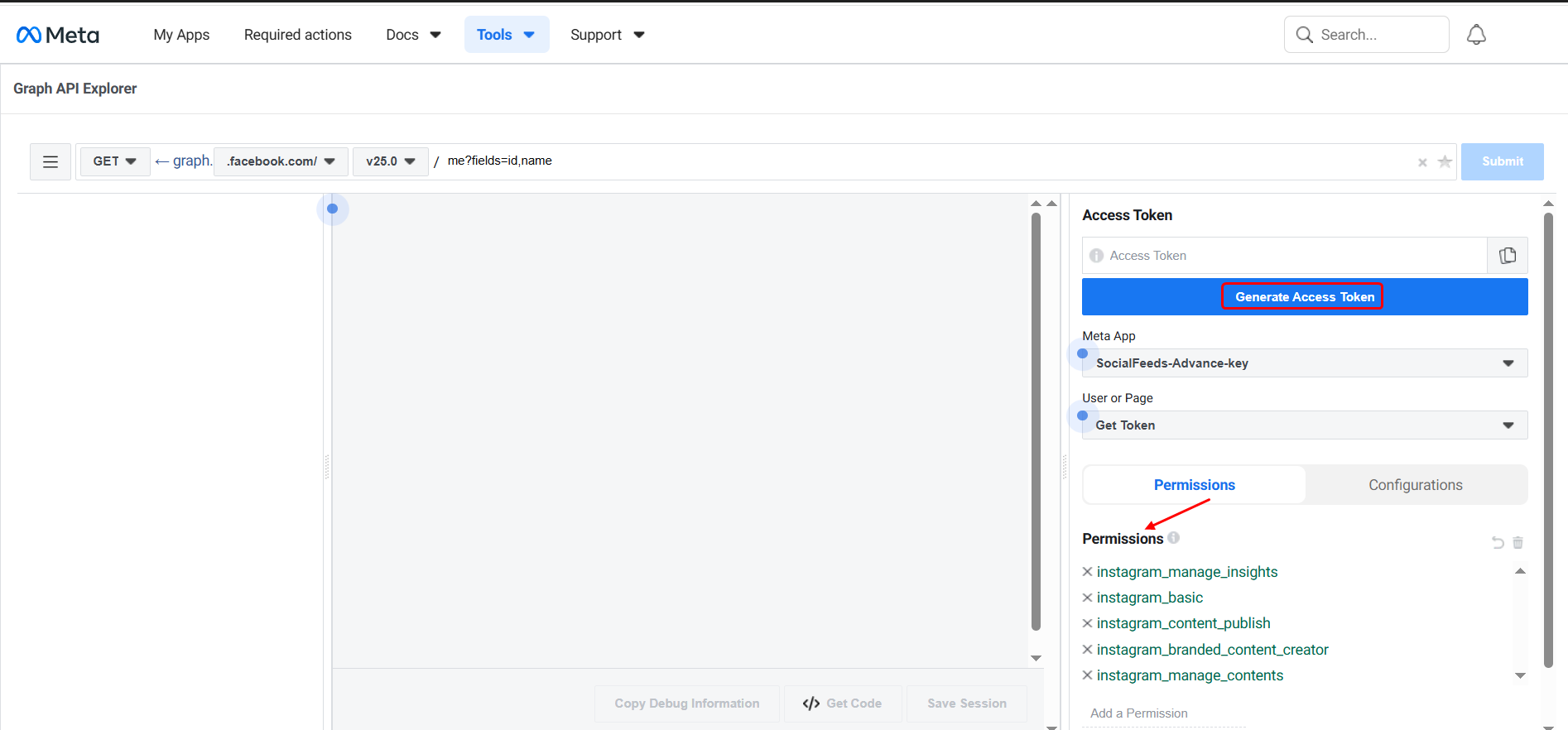
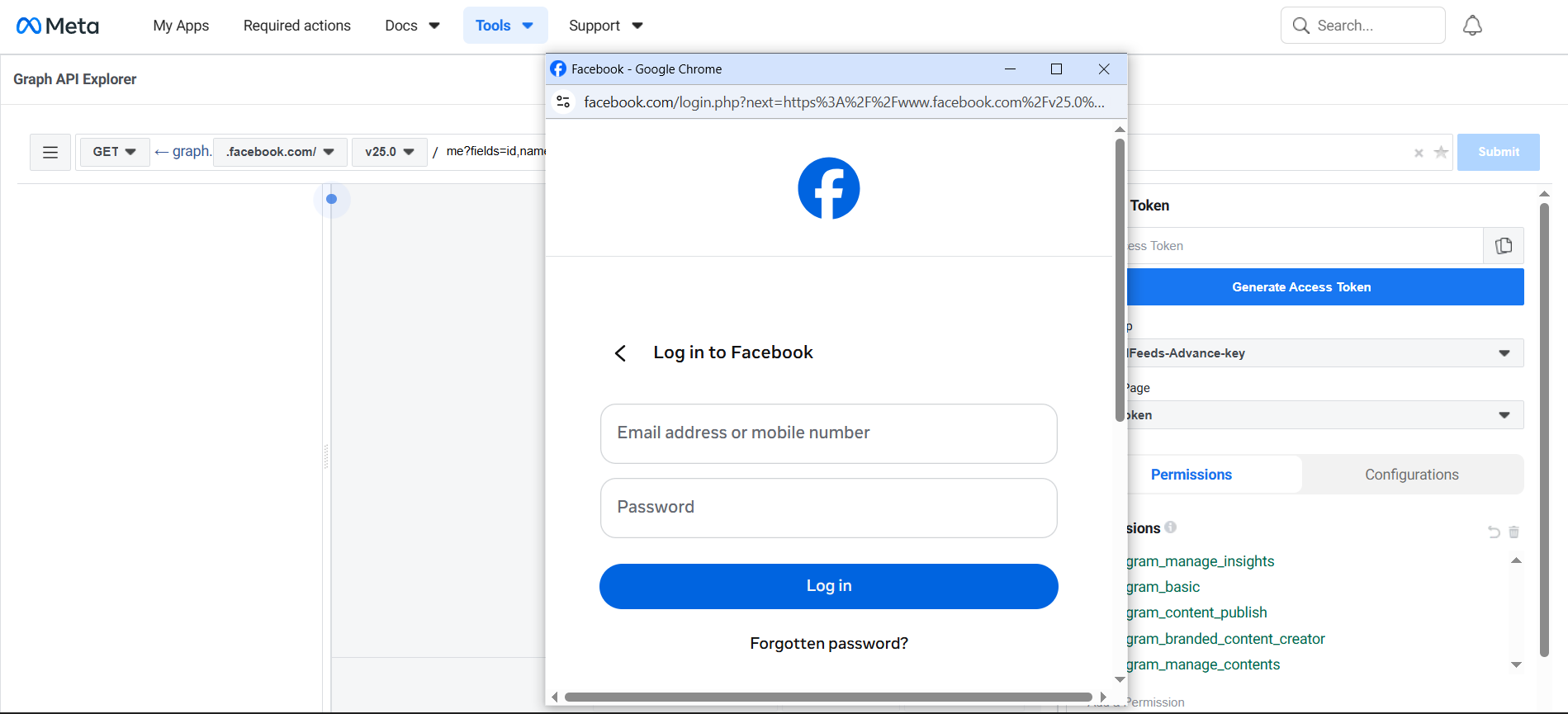
After clicking “Generate Access Token,” log in with your Facebook account and authorize the requested permissions to successfully generate the access token.
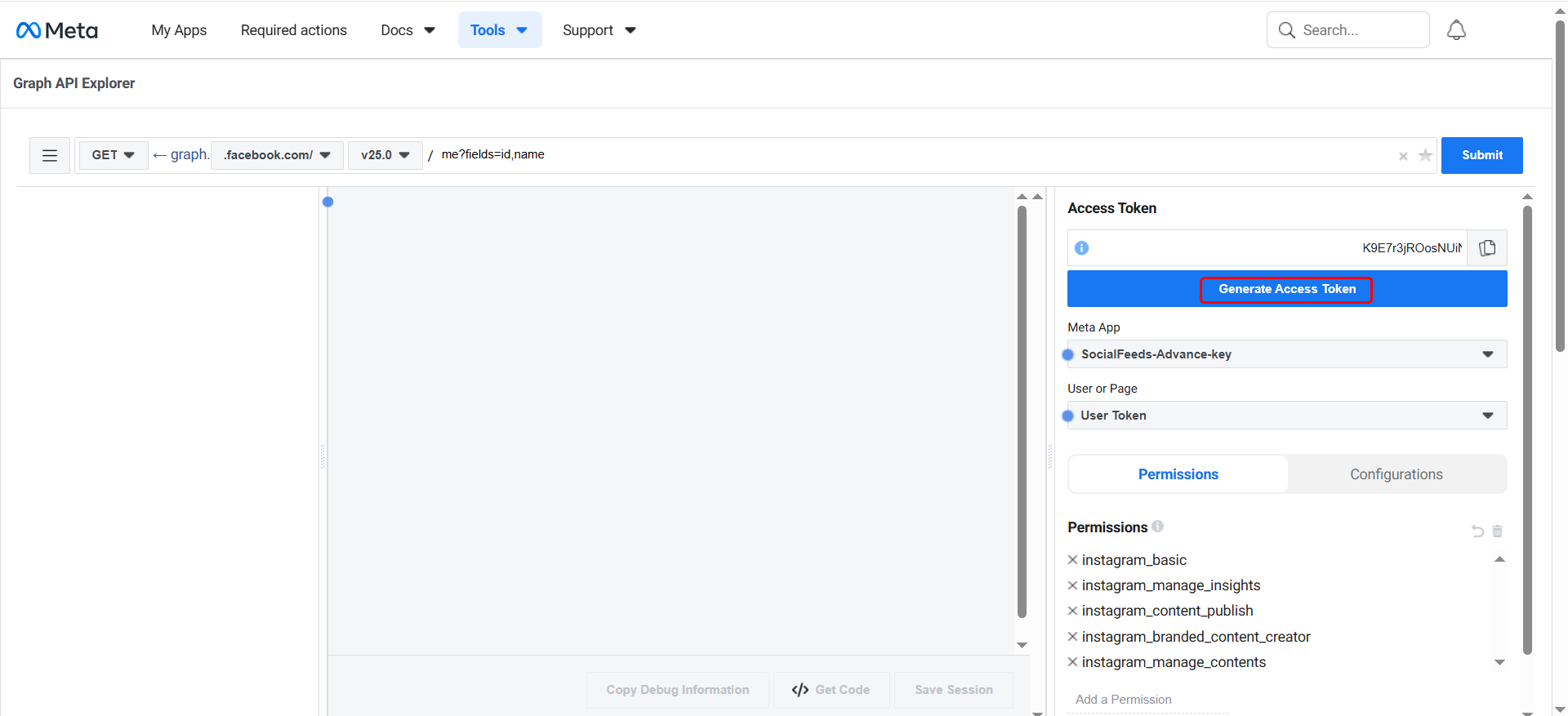
After logging in, an access token will be generated. Copy this token and use it to set up and connect the advanced features of your Instagram integration.
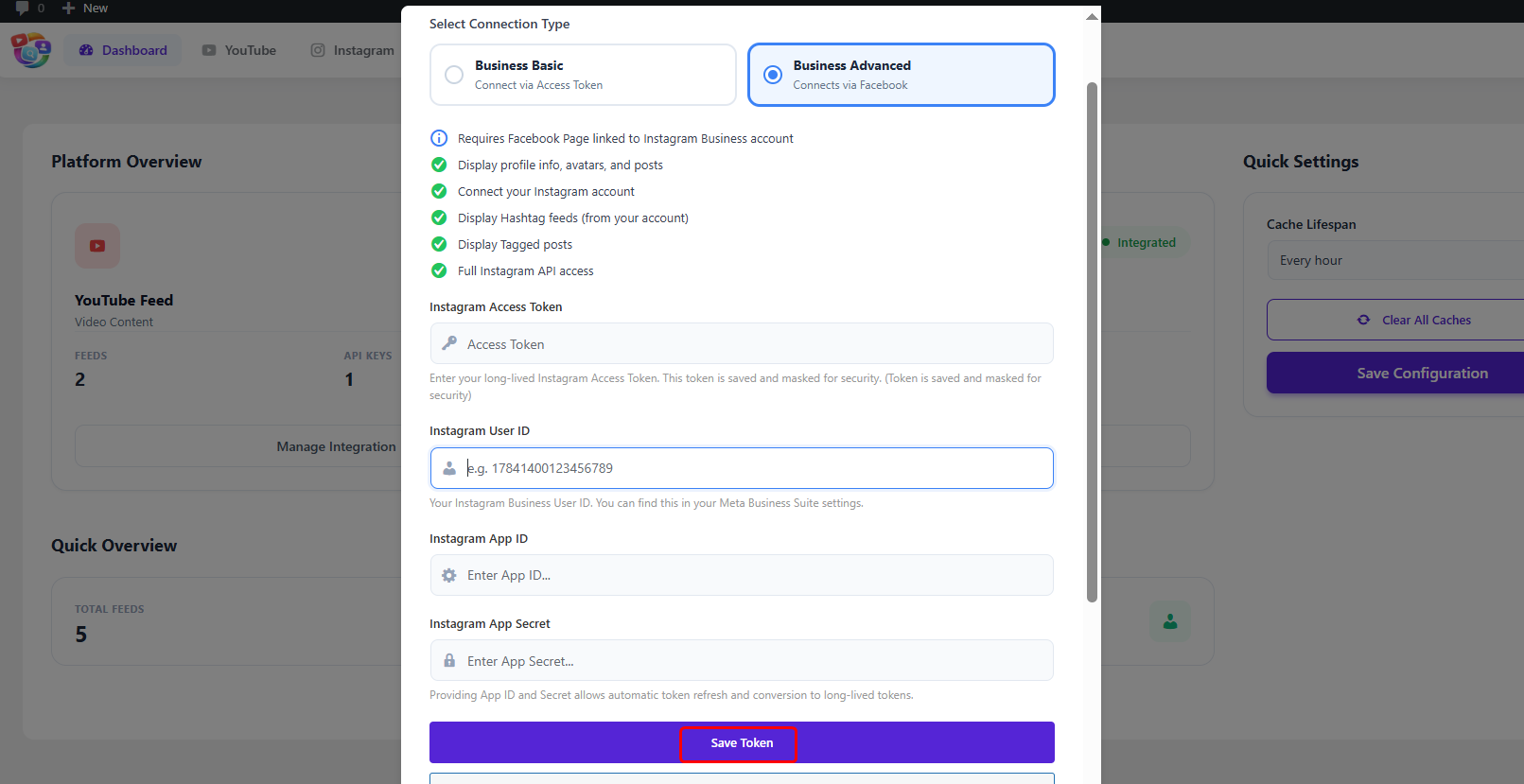
Return to your WordPress dashboard and open the Instagram configuration pop-up. Choose the “API Key (Recommended)” option, then paste your key into the Instagram API Key field. Enter the Instagram Access Token, User ID, App ID, and App Secret, and save these credentials to successfully connect and enable advanced integration with Instagram.
If you face any issue do let us know and we will help you out, you can contact out support team at [email protected]