
How to Create a YouTube API Key
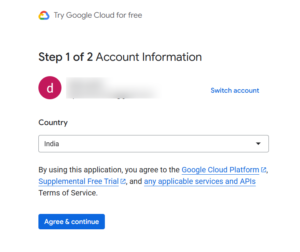
Go to google cloud console and sign in using your Google account credentials. If this is your first time accessing Google Cloud, you will be asked to accept the Terms of Service, confirm your country, agree to policies, and click Agree and Continue.
Once completed, you will be redirected to the Google Cloud dashboard.
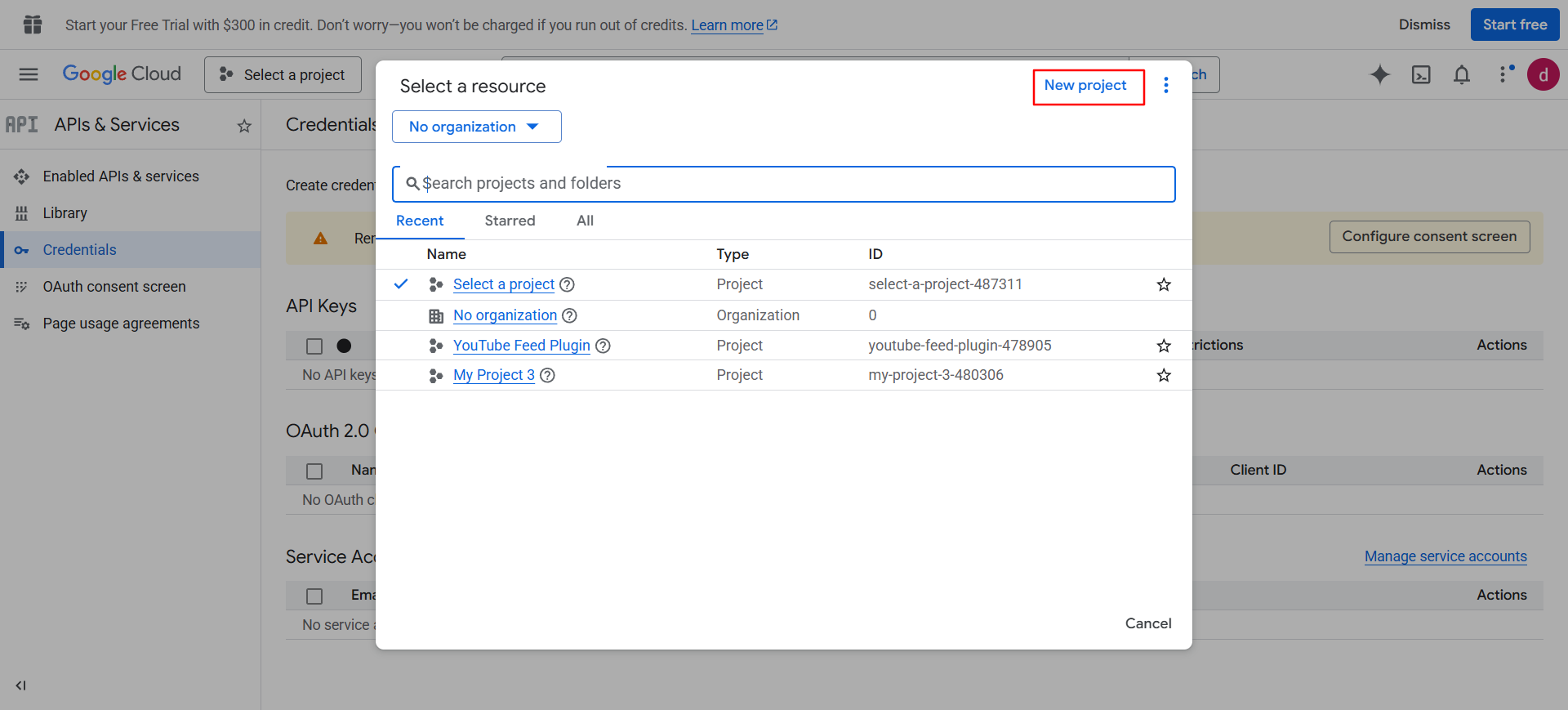
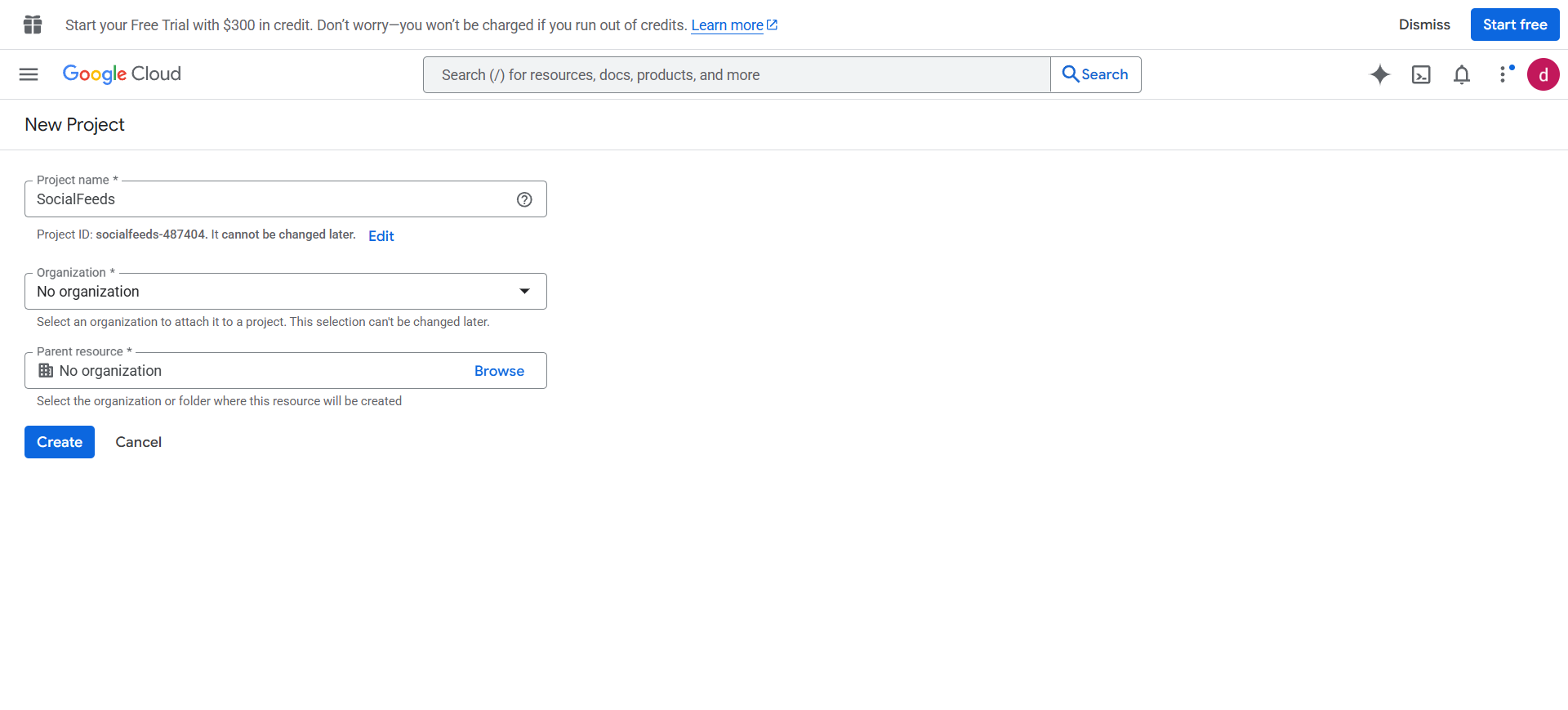
In the top menu, click the Select a Project dropdown. Here, a pop-up appears; click New Project. Enter a Project name (e.g., "SocialFeeds") and click Create.
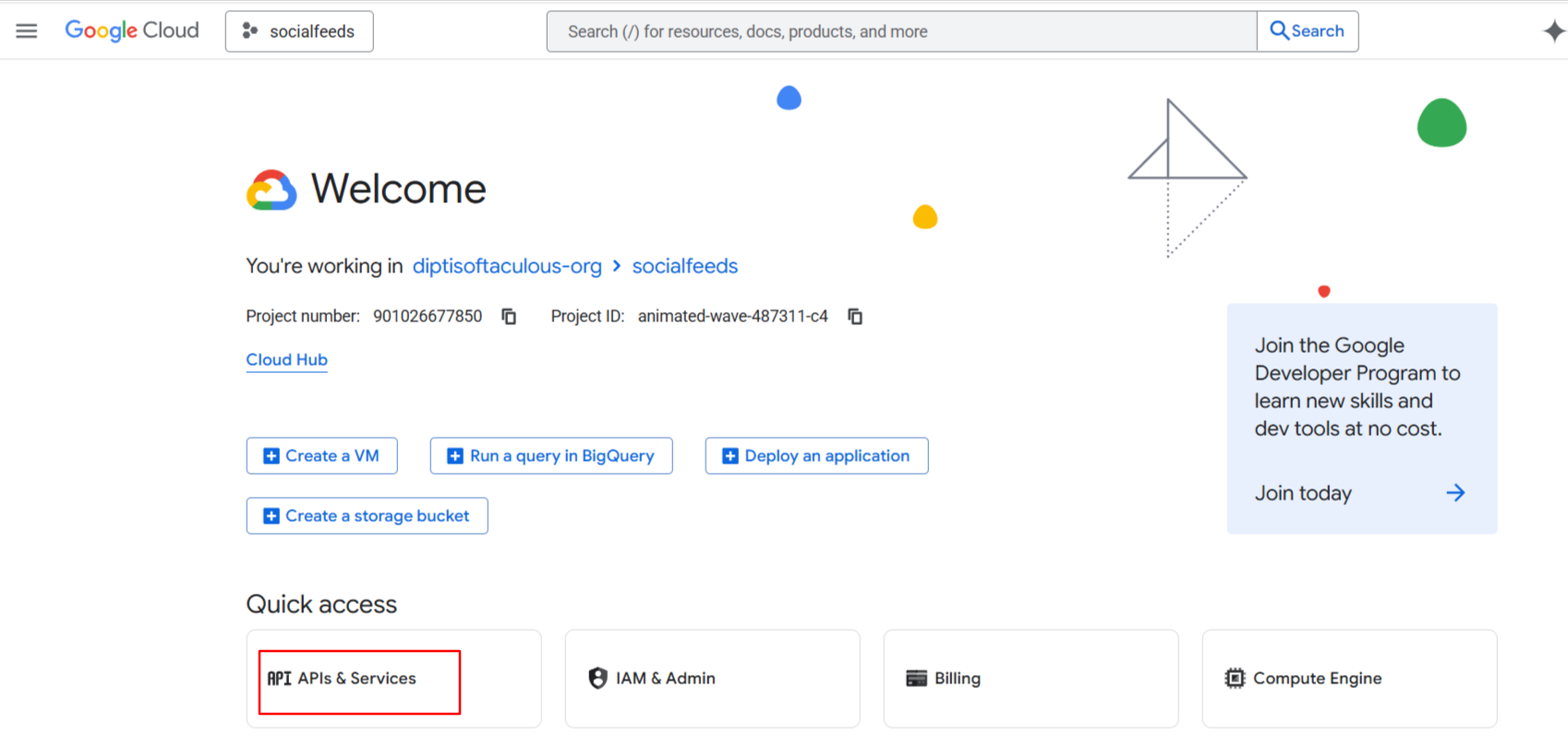
After creating your project, navigate to the APIs & Services.
Next, select the Credentials option from the main navigation menu.
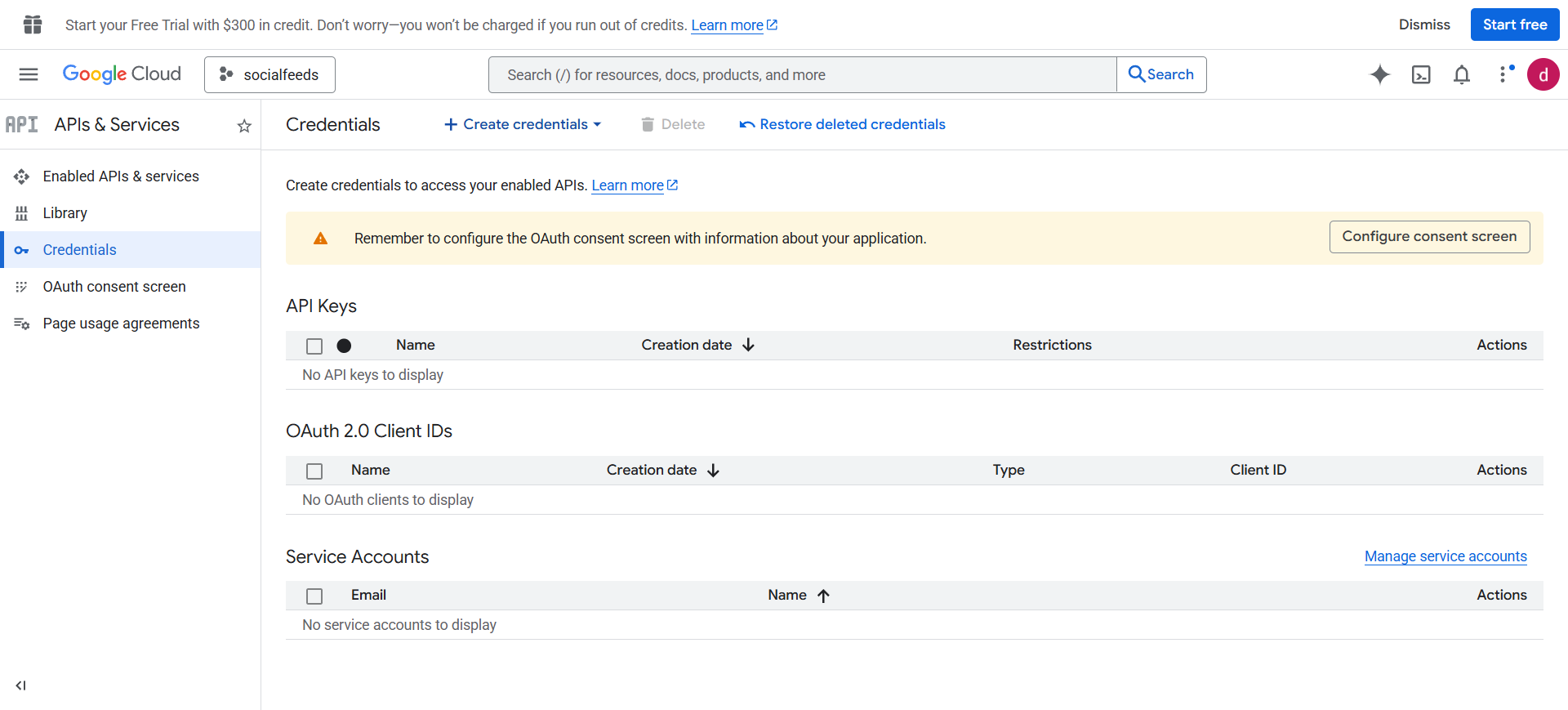
Click the Create Credentials button at the top of the page, then select the API key option from the dropdown menu.
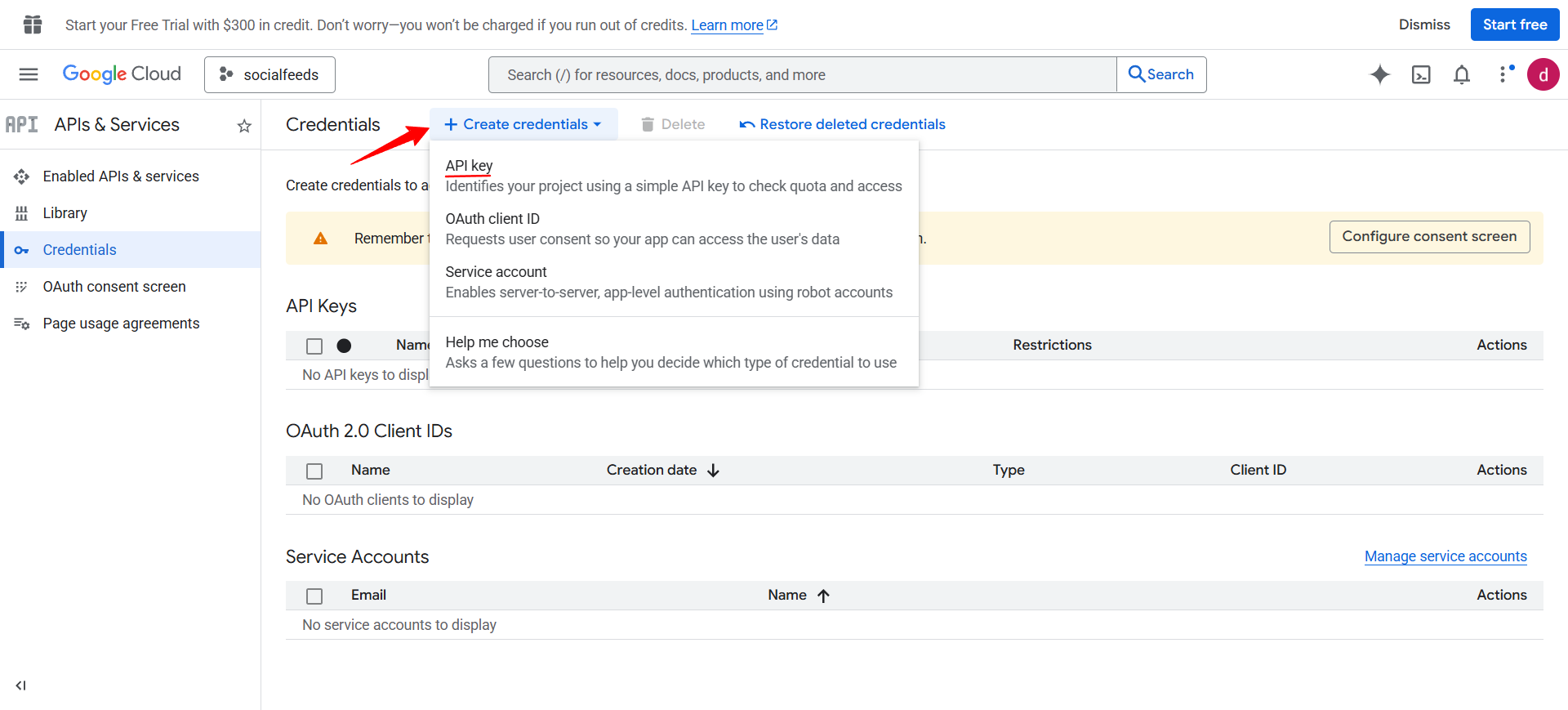
A pop-up window will display your newly generated key. Click the Copy icon to save it.
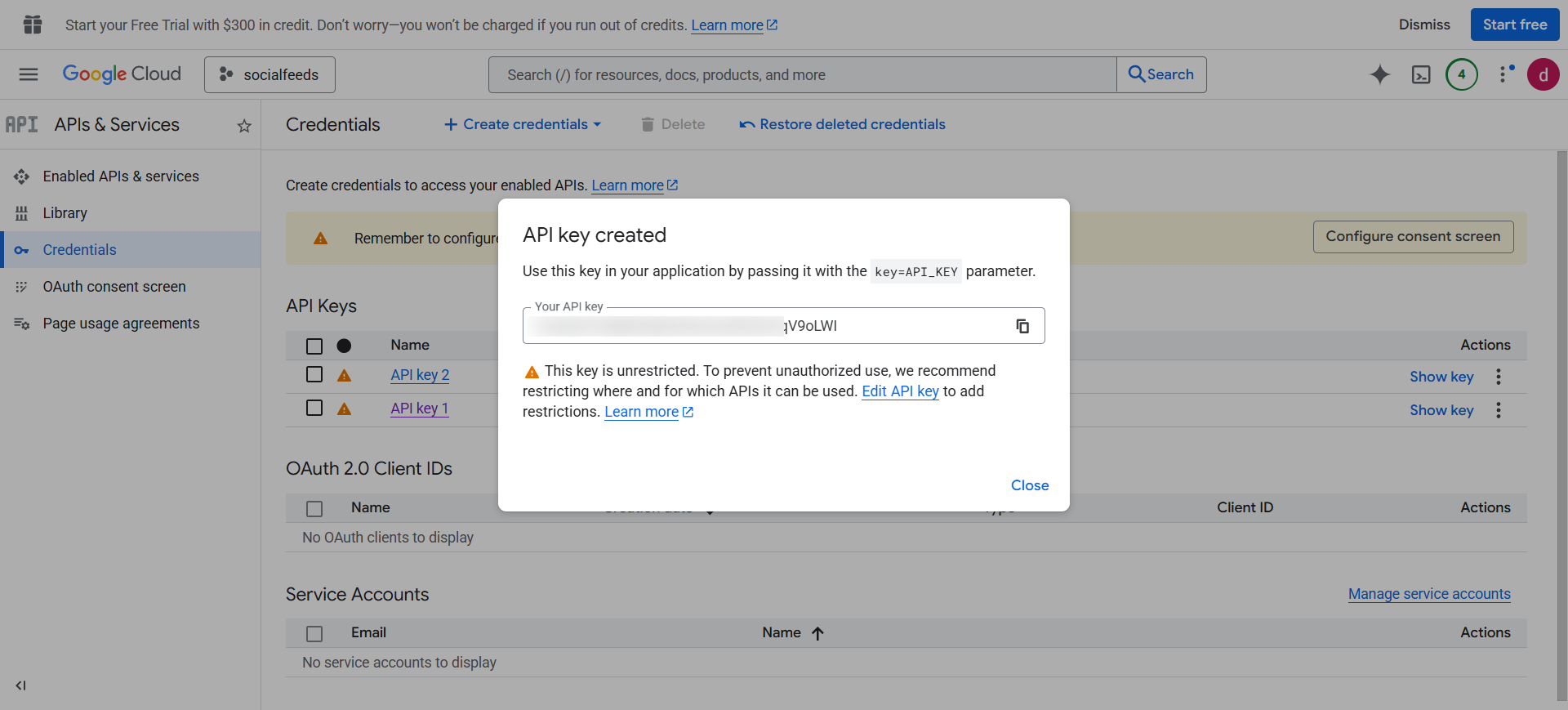
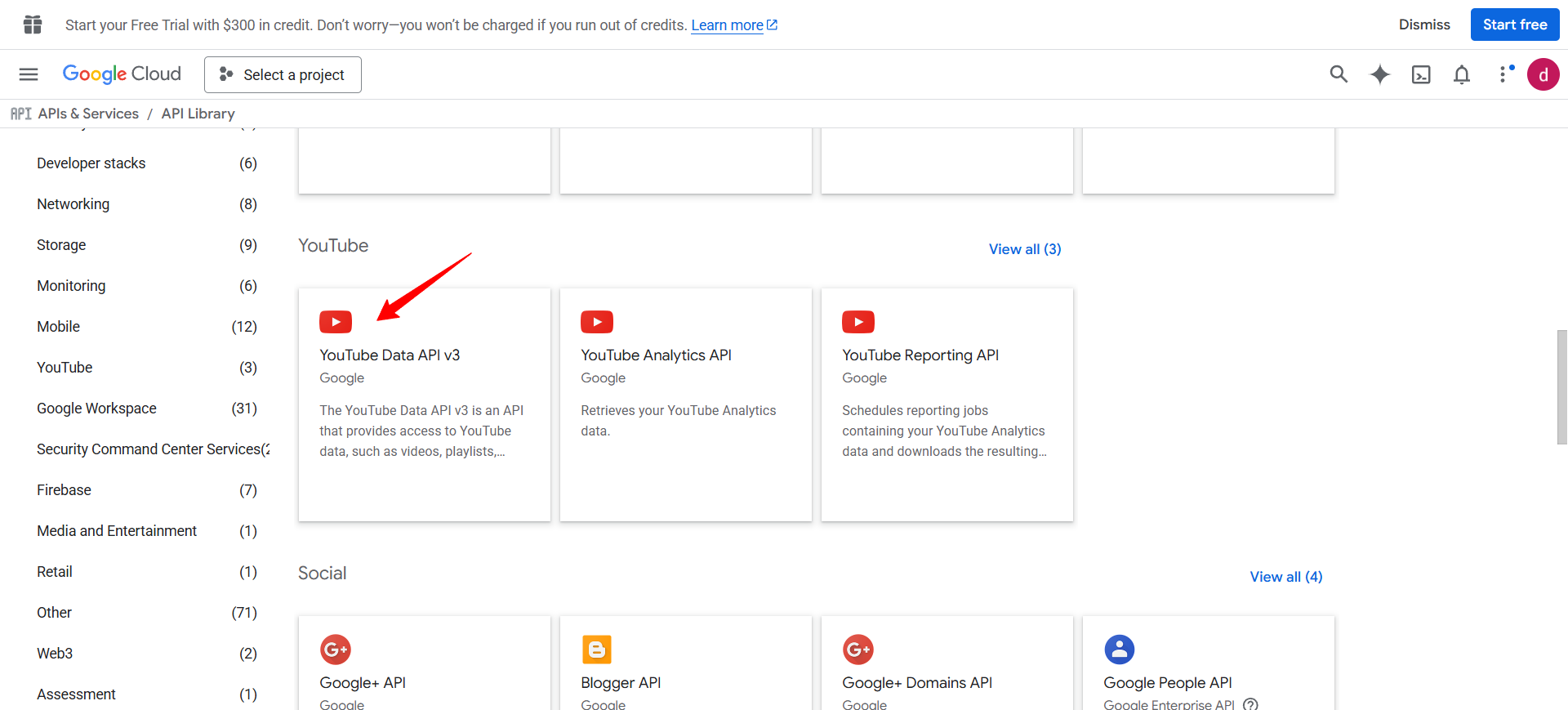
To configure the YouTube Feed properly, you must enable the YouTube Data API v3; otherwise, the API key will not function. Go to API Library, and enable YouTube Data API v3 from there.
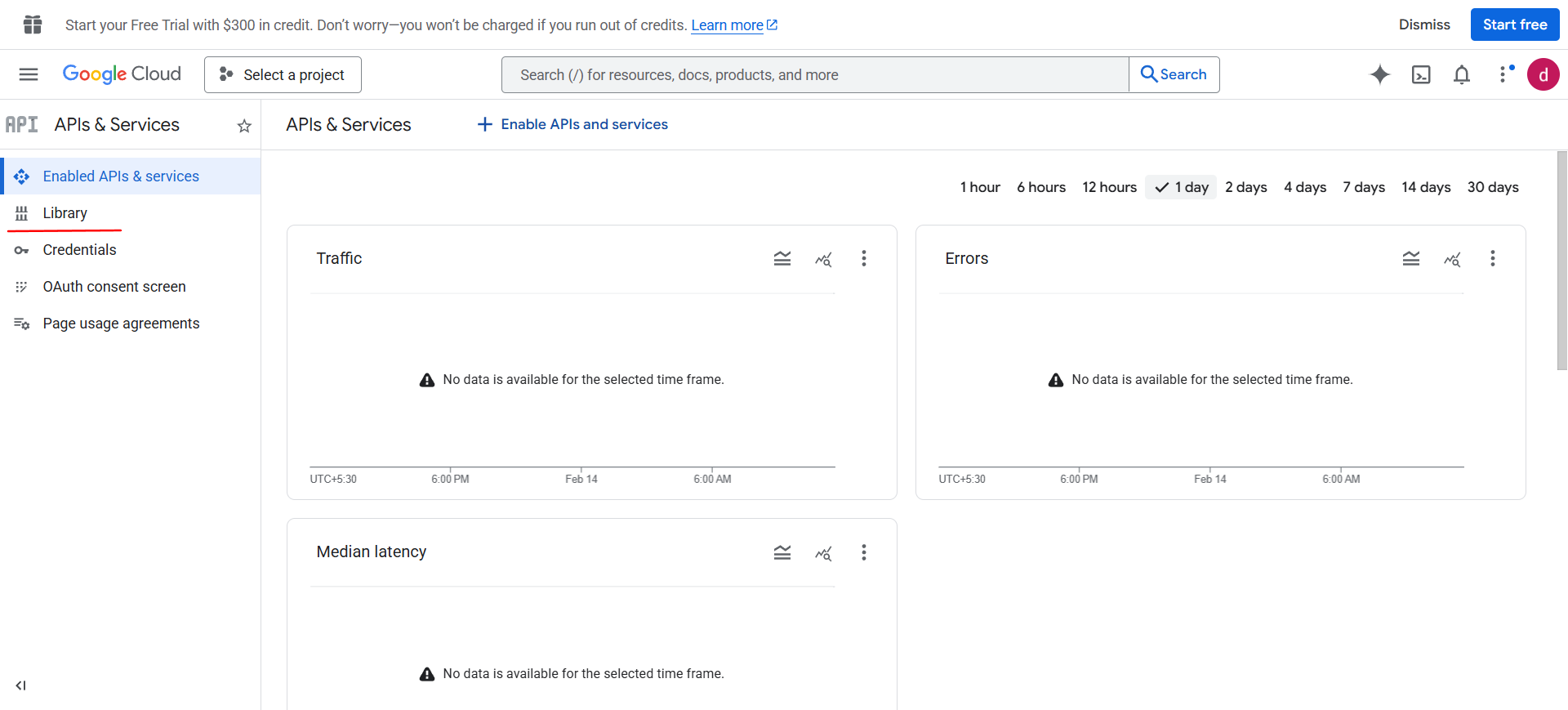
In the API Library, scroll down or use the search bar to find YouTube Data API v3, then click on YouTube Data API v3 to open it.
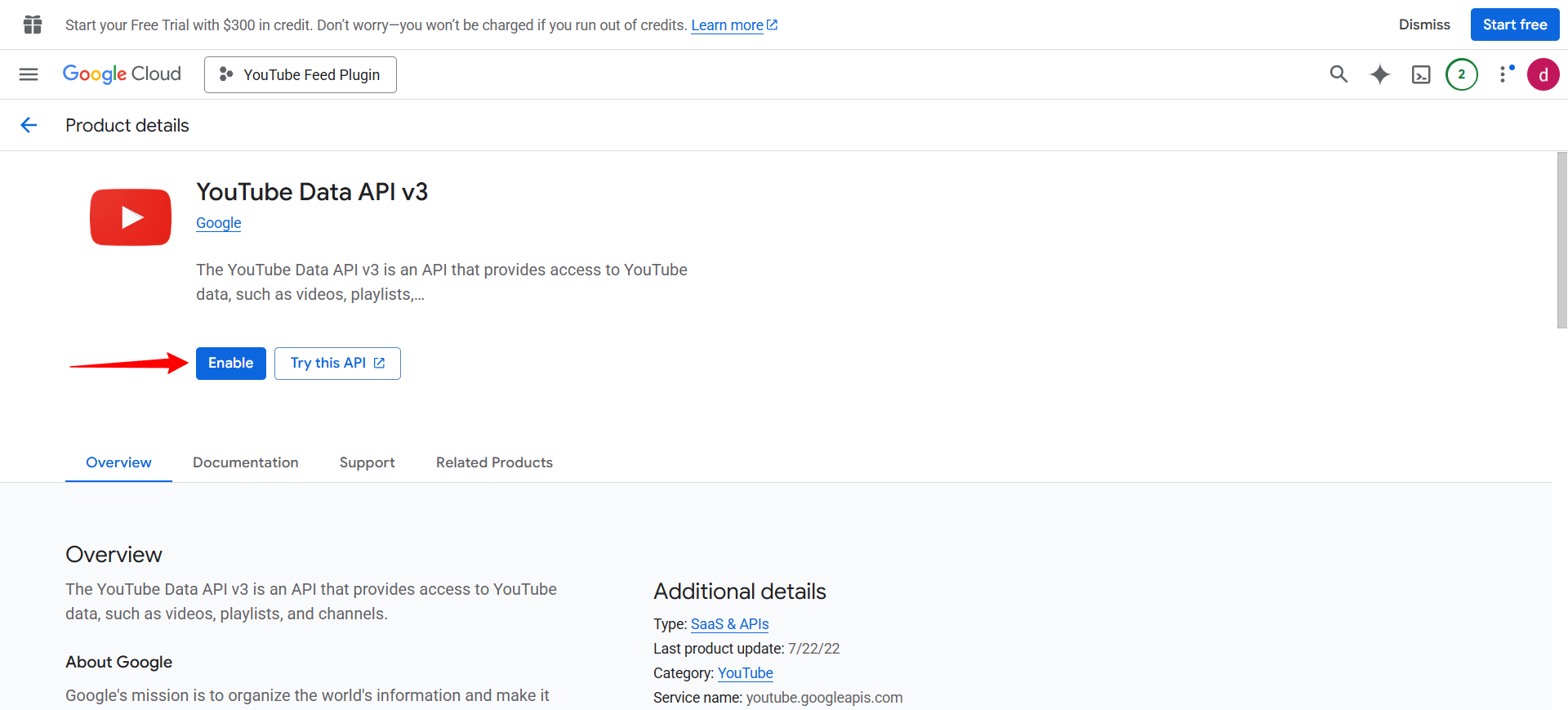
After selecting YouTube Data API v3, click the Enable button to activate it.
Add the API Key to SocialFeeds
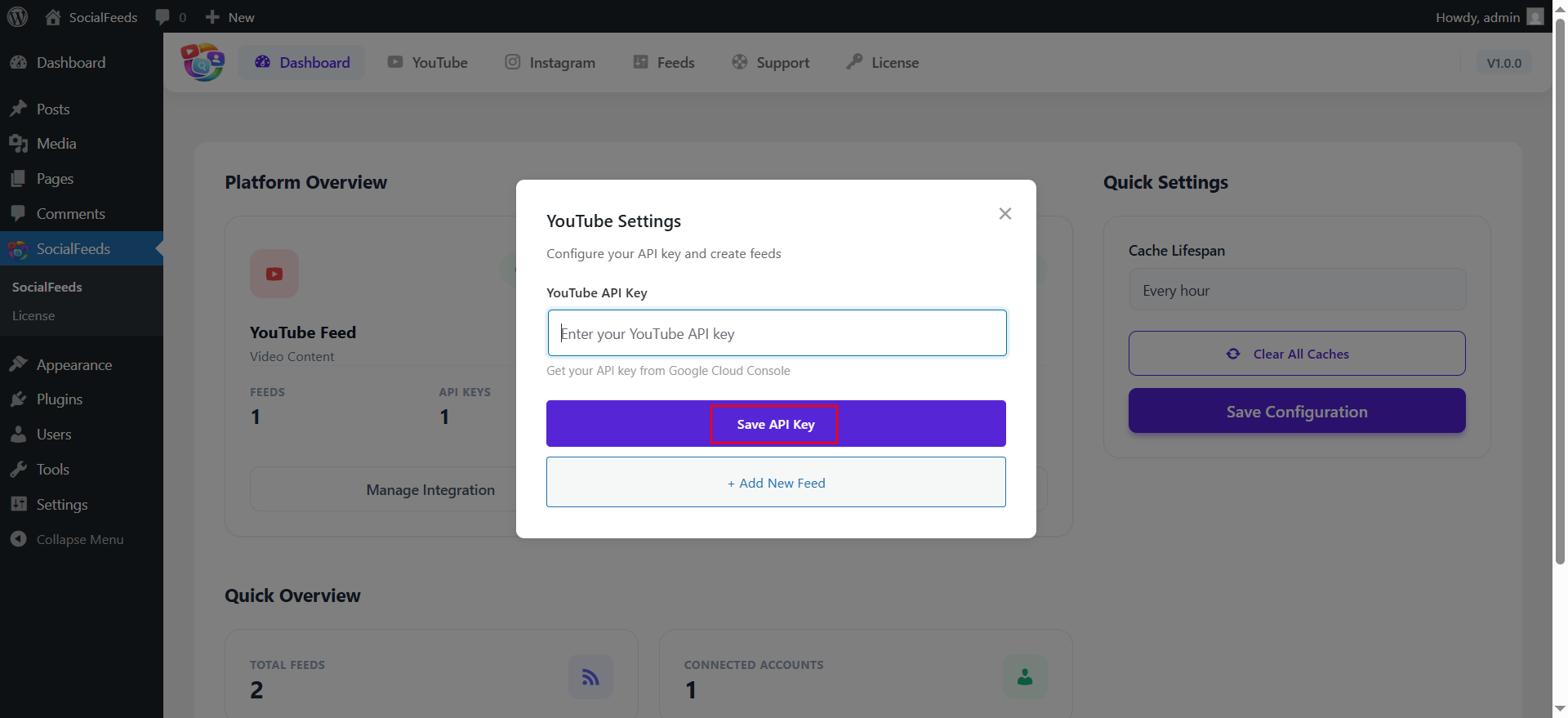
Return to your WordPress dashboard and open the YouTube configuration pop-up. Choose the API Key (Recommended) option, paste your key into the YouTube API Key field, and click Save API Key. Your YouTube account is now successfully connected.
If you face any issue do let us know and we will help you out, you can contact out support team at [email protected]